VOLO · FLIGHT SIMULATOR
Flight manual
Browser flight simulator · Cessna 172 with a glass cockpit inspired by the G1000
A project by Massimiliano Petra · massimiliano.petra@gmail.com
Open the simulator Versione italiana Physics of flight: the theory (in Italian) ↗1. Getting started
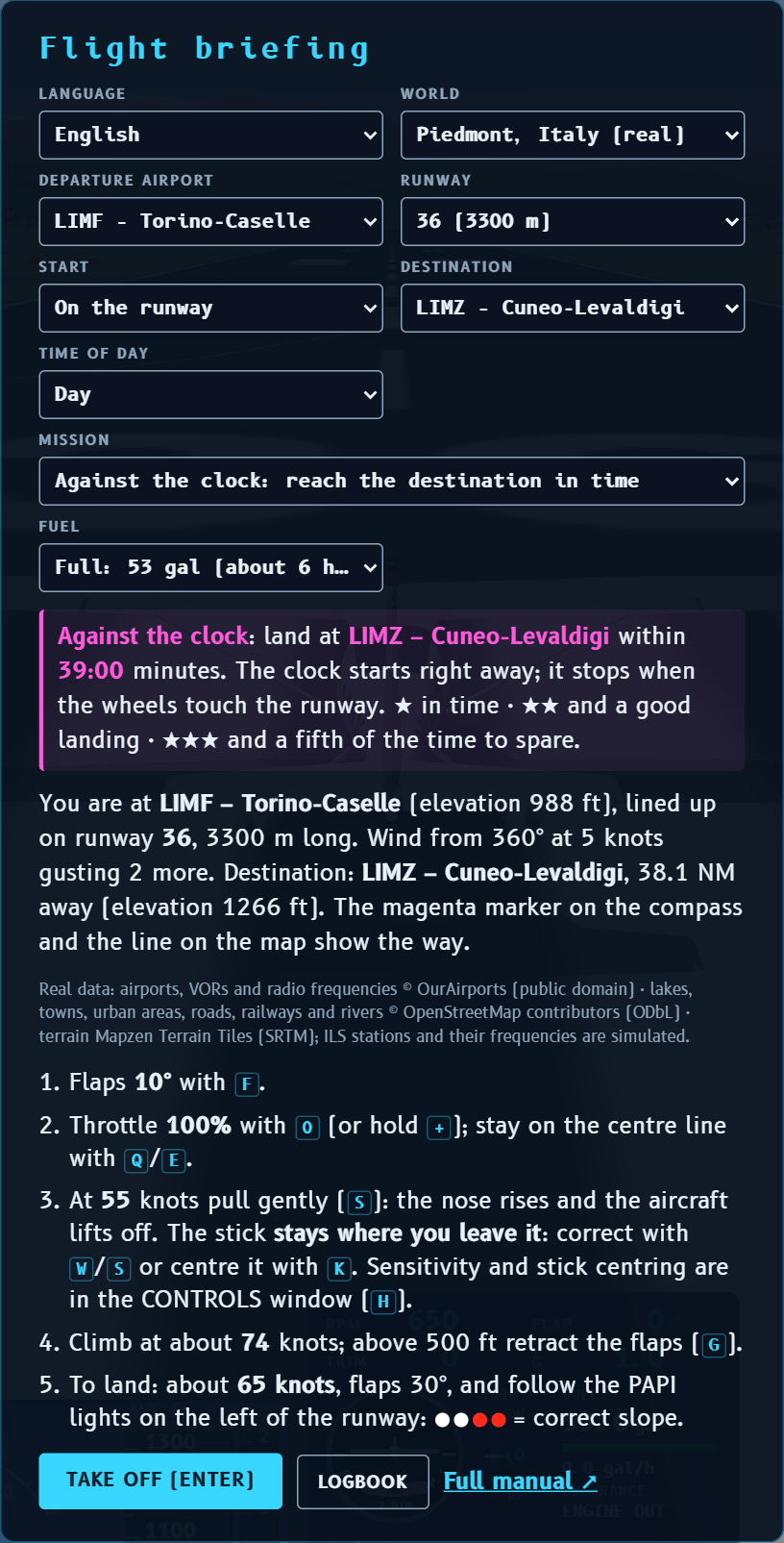
When the simulator opens you see the flight briefing. Here you choose:
- Language: Italiano or English. The game remembers your choice.
- World: Piedmont (real: mountains, lakes, towns, roads and 32 real airports in north-west Italy) or Valle Azzurra (invented, small, great for learning).
- Aircraft: Cessna 172 (with G1000 and autopilot) or the Ikarus C42 microlight (see The Ikarus C42 microlight). Changing aircraft reloads the page.
- Departure airport and runway: the suggested runway is the one most into the wind.
- Start: on the runway, ready for take-off, or from the parking area, on the apron: you taxi to the runway (see Take-off step by step).
- Destination: the simulator prepares the flight plan by itself.
- Time of day: day, sunset or night.
- Mission: free flight or a challenge with stars: against the clock, tour or precision landing (see Missions and logbook).
- Fuel: from full tanks (about 6 hours with the Cessna, 5 with the C42) to almost empty (about a quarter of an hour).
Then press Take off (Enter) to start at the runway threshold, or Practise landing to start on final approach to the arrival runway of your destination, about 2.7 NM out. The Logbook button shows your flights and records.
2. Controls
Keyboard
| Key | What it does |
|---|---|
| W / S (or arrows ↑ ↓) | Stick forward (nose down) / back (nose up) |
| A / D (or arrows ← →) | Roll left / right (ailerons) |
| K | Centre the stick |
| Q / E | Rudder left / right; on the ground it steers the nose wheel |
| + / − | Throttle up / down (hold) |
| 1 … 9, 0 | Throttle at 10 … 90%, 0 = 100% |
| F / G | Flaps down / up (Cessna 0°, 10°, 20°, 30°; C42 0°, 15°, 40°) |
| Shift+F | Refuel, stopped at an airport with fuel (see Fuel) |
| Z / X | Trim nose up / nose down |
| B or Space | Brakes (hold) |
| C | Change view: outside, cockpit, tower |
| Right mouse button | Hold and drag: in the cockpit you look around, outside you orbit the aircraft. Release it and the view stays where you left it |
| Mouse wheel | Zoom (in the cockpit and in the outside view). Press the wheel to return to the standard view (straight ahead, no zoom) |
| N | Next destination |
| J · T · I · Y | Tabs of the right column: map, radio, flight plan, mission. Press the same key again to hide the column |
| M / O | Map scale / north up or heading up |
| T | Radio: opens the menu of sentences to say to the tower (then 1…4) |
| U | Radio COM1: tune the next nearest station |
| Shift+T | Transponder: type the 4-digit code (see Radio communications) |
| V | NAV1: tune the next VOR or ILS station in range (nearest first) |
| L | NAV1: tune the ILS of the arrival runway |
| , / . | VOR course CRS −1° / +1° (with Shift ±10°) |
| Shift+A | Autopilot: engage / disconnect (see Autopilot) |
| Shift+N · L · C | Autopilot: NAV mode · APR mode (ILS approach) · CDI source (GPS or NAV1) |
| H | Open / close the controls window (the flight is paused meanwhile) |
| P / R | Pause / restart (the mission too, from the beginning). The flight goes on even if you switch to another tab or minimise the window, like a real flight: to stop it, pause |
| Esc | Close the open window; otherwise back to the briefing, to change airport, destination, mission, time or fuel (also from the button in the pause screen) |
How the keyboard moves the stick
While you hold W or S the stick moves little by little. When you release the key it normally stays where you left it, like a pilot holding it still. You can see its position in the small square with the cross-hair in the bottom panel, left of the throttle: the dot low down means the stick is pulled back.
The CONTROLS window (H or the button at the top left) has two settings, which the game remembers:
- Stick sensitivity (1–10, default 5): the lower it is, the softer the controls near the centre and the slower the keys move the stick. At full deflection you always have the full range.
- The stick returns to the centre when you release the keys (on by default): the aircraft, which is stable, goes back to balanced flight by itself. For long climbs or descents you then use the trim.
Mouse and gamepad
Mouse: drag on the screen as if it were a control stick; dragging starts from the current stick position.
| Gamepad | Control |
|---|---|
| Left stick | Control stick (roll and pitch) |
| Third axis | Rudder |
| Right / left trigger (or fourth axis) | Throttle up / down |
| Right / left bumper | Flaps down / up |
| A (first button) | Brakes |
| Y | Change view |
| Start | Start / pause |
3. The screen
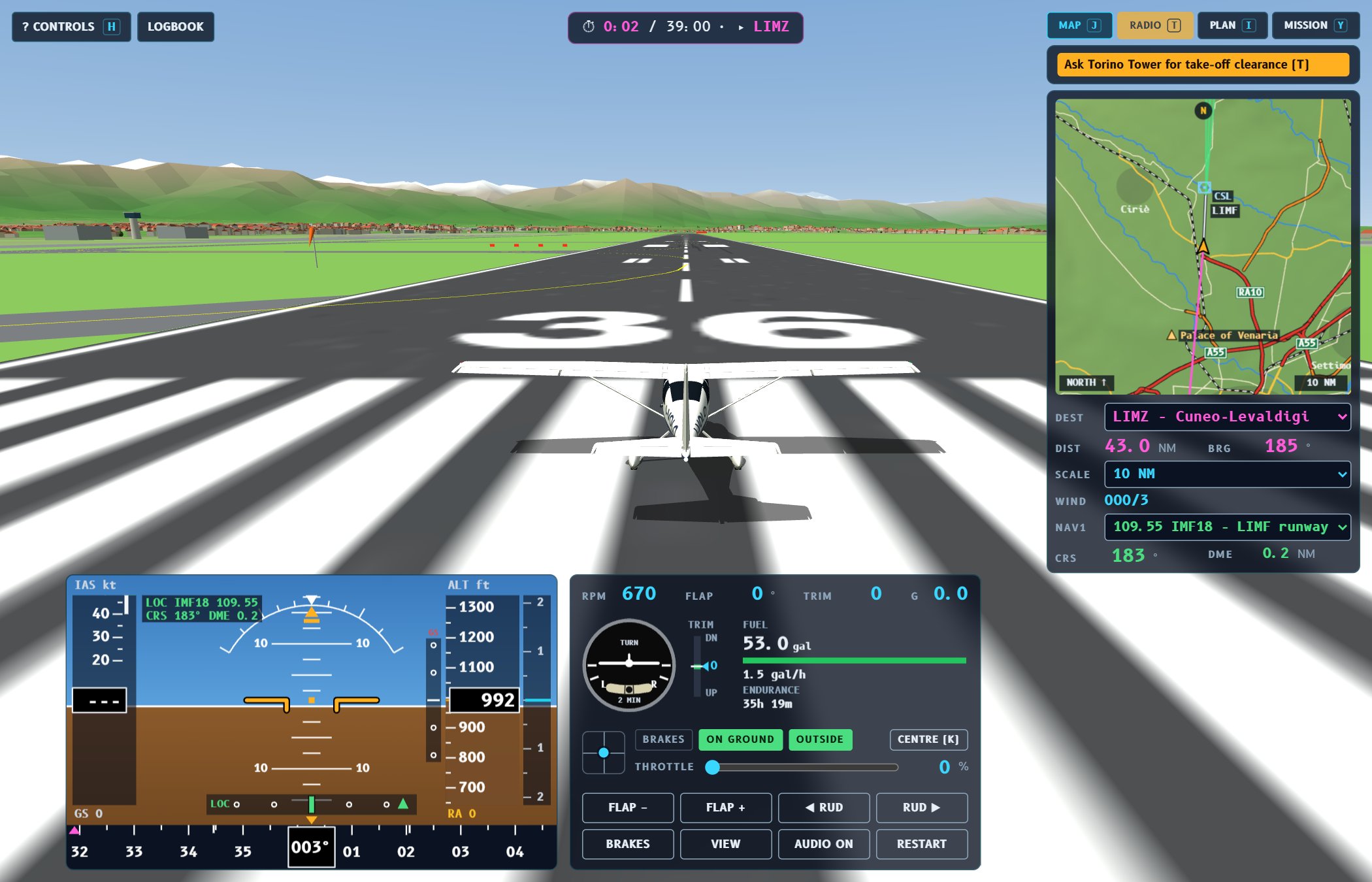
- ? CONTROLS and LOGBOOK (top left): open the window with the list of keys and the stick settings (also with H) and the logbook. While they are open the flight is paused.
- MAPS ↗ (top left): opens two views in another tab (or on a second screen). The large map is linked to the flight: it shows the aircraft, the route, the other aircraft and the path flown (orange line); drag to move it and use the wheel to zoom, FOLLOW AIRCRAFT brings it back to the aircraft; the PLAN button shows or hides the flight plan (the same as the PLAN tab) with the list of route points, the course and the miles of each leg. AIRPORT shows the chart of the chosen airport (zoom with the wheel or + and −, down to the numbered stands and jet bridges; double click or ALL to see it whole again): runways, named taxiways, aprons, stands, tower, holding points (red) and PAPI; beside it the data (runways, frequencies, ILS, nearby VORs, fuel, METAR when weather is on) and for each runway the approach: circuit, final and 3° descent profile with the altitude mile by mile and the terrain below. It can be printed. These are charts simulated by the game, not the official ones.
- Mission objective (top centre, only if you chose one): clock, next stop or score.
- PFD (bottom left): the main instrument, with speed, attitude, altitude, vertical speed and compass.
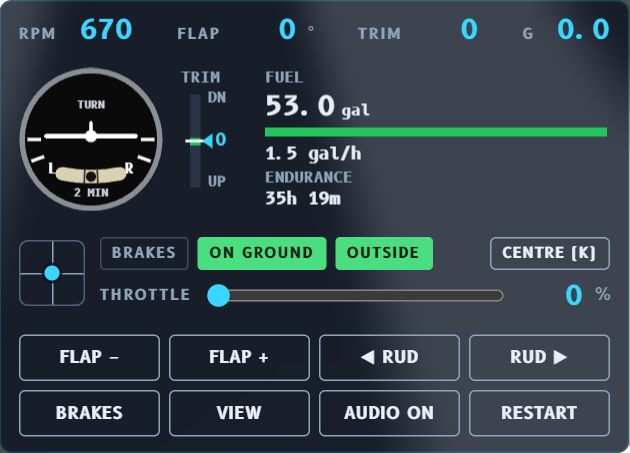
- Engine and systems panel (bottom centre): RPM, flaps, trim, g-load, turn coordinator, fuel, stick, throttle and buttons.
- Tabbed column (top right): MAP (J), RADIO (T), flight PLAN (I), AP (the autopilot) and MISSION (Y). Only one shows at a time, so the view stays clear; click a tab or press its key to switch, again to hide the column. The game remembers your last choice.
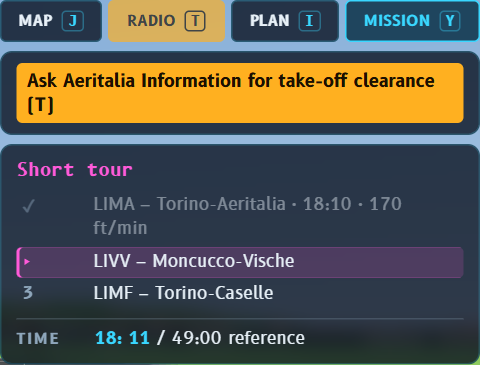
When the RADIO tab is not open, the last transmission shows for a few seconds below the tabs, and in orange the prompt about what to say to the tower; the RADIO tab flashes when the tower is waiting for your call. Pressing T opens the radio by itself and, once the conversation is over, the previous tab comes back.
At the top centre you see messages (take-off, landing, radio…) and flashing warnings (stall, pull up…).
4. The PFD (Primary Flight Display)
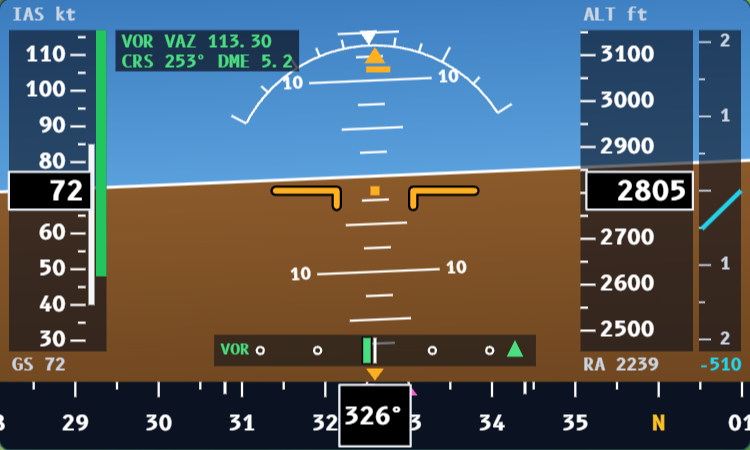
Artificial horizon (centre)
The orange aircraft symbol stays still while the sky and the ground move. The horizontal lines are the pitch degrees (10°, 20°…). The arc with ticks at the top is the bank scale (10°, 20°, 30°, 45°, 60°). The small orange bar under the triangle is the slip/skid indicator: if it moves sideways the turn is not coordinated; correct with rudder on the side it moved to.
Airspeed tape (left)
Shows indicated airspeed (IAS) in knots. The coloured bands:
- white (40–85 kt): speeds where flaps may be used;
- green (48–129 kt): normal operating speed;
- yellow (129–163 kt): only in smooth air;
- red (above 163 kt): never exceed.
Below it is GS, the ground speed, which changes with the wind.
Altitude tape and vertical speed (right)
Altitude in feet above sea level. When the terrain is close it appears in brown, with an orange line. The vertical speed scale on the right shows how fast you climb or descend, in thousands of ft/min.
RA, the radio altimeter (below the altitude)
The large altitude number is your altitude above sea level: it does not tell you how close you are to the ground, because below you there may be the plain at 250 m or a mountain at 2000 m. RA (radio altimeter) is your height above the ground right below you, in feet. In real aircraft it is measured by an antenna under the fuselage that sends a radio signal downwards and measures how long it takes to come back.
- above 2500 ft of height it shows ---- (it is not needed up there);
- below 1000 ft it turns yellow: you are close to the ground (take-off, landing, or too low);
- on the runway it reads about 0, because it measures the height of the wheels.
It is useful above all when landing, to know when to flare (RA below 20–30 ft), and in the mountains. The real Cessna 172 with G1000 has no radio altimeter, which is found on airliners and helicopters: in the simulator it is an extra help.
Compass (bottom)
The heading is in the middle. The small magenta triangle points to the next point of the flight plan. The magenta bar starting from the centre is the turn rate trend: it shows where the heading will be in 6 seconds. The two white ticks mark a standard-rate turn (3°/s).
NAV1 radio navigation (green)
When the NAV1 radio is tuned you see:
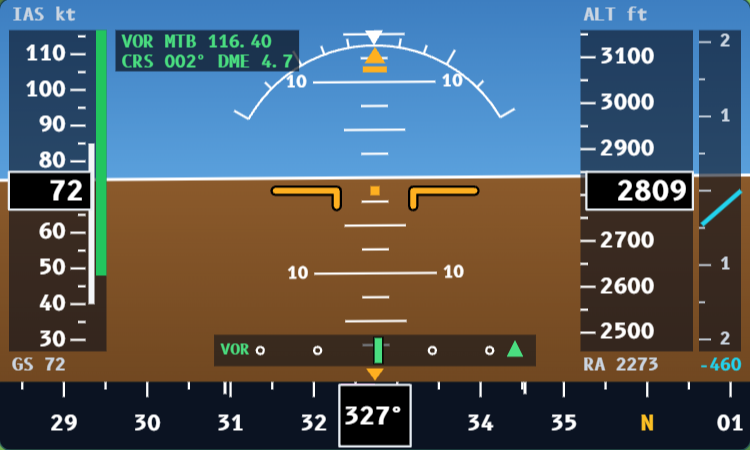
- top left, a box with the type (VOR or LOC), identifier, frequency, the course CRS and the DME distance in nautical miles;
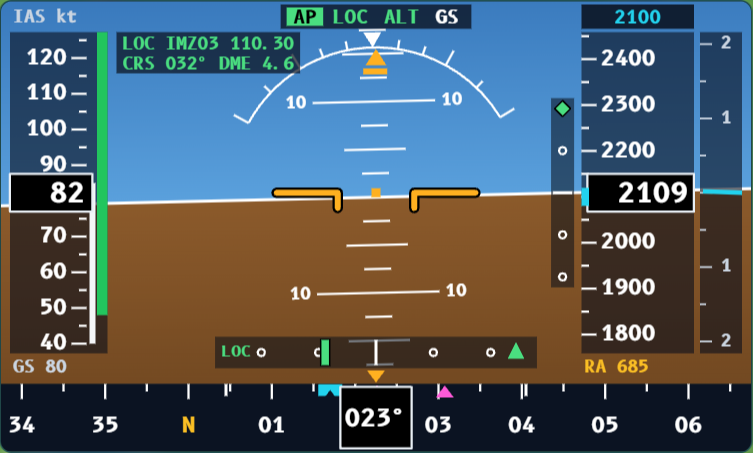
- at the bottom, the course deviation indicator (CDI) with the green needle: the needle shows which side the course is on, so fly towards the needle. The triangle on the right points up for TO (towards the station) and down for FROM (away from it). NO means no signal;
- with an ILS only, a vertical scale next to the altitude tape with the green glide slope diamond.
5. Engine, turn coordinator, trim, fuel
- RPM: engine revolutions (2100–2700 in flight).
- FLAP: flap position in degrees.
- TRIM: trim position (+ = nose up, − = nose down).
- G: the load you feel: 1.0 in level flight, more in turns and pull-ups.
Turn coordinator
The little aircraft banks according to how fast the heading changes. When its wing touches the L or R mark you are flying a standard-rate turn: 3° per second, a full circle in 2 minutes. At 90–100 kt that needs about 15° of bank.
The ball in the tube shows coordination. If it slides to one side, “step on the ball”: a little rudder (Q or E) on the same side.
Trim
The trim takes the effort off the stick. The blue pointer goes down (UP, nose up) or up (DN, nose down); the green band is the take-off setting.
Fuel
Shows the US gallons left (1 gallon = 3.8 litres), the consumption in gal/h and the endurance at the current consumption. Fuel flow depends on rpm: the Cessna burns about 1.5 gal/h at idle, 8.5 at 2400 rpm and 11.5 at maximum; a little less at altitude. The number turns yellow below 20% of the tank and red below 10%. The C42 counts in litres.
Refuelling. The tank does not fill up by itself when you land: the flight continues with what you have left. To fill up, stop at an airport, off the runway (at the parking area or on the apron), with the throttle at idle (in real life with the engine off), and press REFUEL (it appears among the buttons) or Shift+F. The fuel goes up a few times faster than in real life; press again to stop before the tank is full. Not every airport has a fuel station: there is one where OpenStreetMap marks it, where there is a tower or an information service, or an asphalt runway of at least 800 m; there is none at grass airstrips, short altiports and military airports. The flight plan (FUEL line) tells you how much fuel you need to get there, plus 30 minutes of reserve, and whether you can refuel at the destination.
6. Map and NAV1 radio
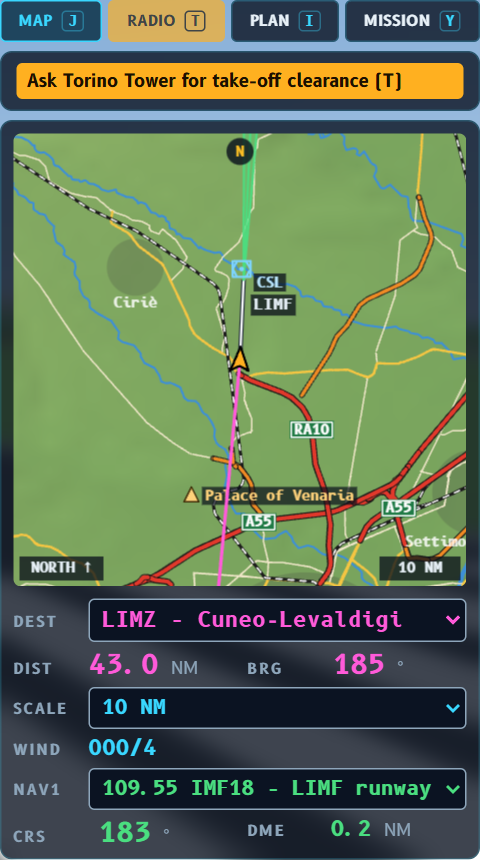
- Click on the map (or O): north up or heading up.
- Mouse wheel on the map, the SCALE menu or M: from 0.5 to 100 NM or the whole region.
- Magenta line: the flight plan route; the solid part goes from the aircraft to the next point.
- Blue hexagons: VOR stations; those with a square around them also have DME, which measures distance.
- Blue diamonds: the other aircraft, with the altitude difference in hundreds of feet.
- Green dashed line: the CRS course of the tuned VOR. The green fan in front of a runway is the beam of the tuned ILS localizer.
Below the map:
- DEST: the destination (also N);
- DIST and BRG: distance and bearing of the next point;
- WIND: where it blows from, and how many knots;
- NAV1: menu to choose the station;
- CRS and DME: the selected course and the distance from the station.
7. Flight plan
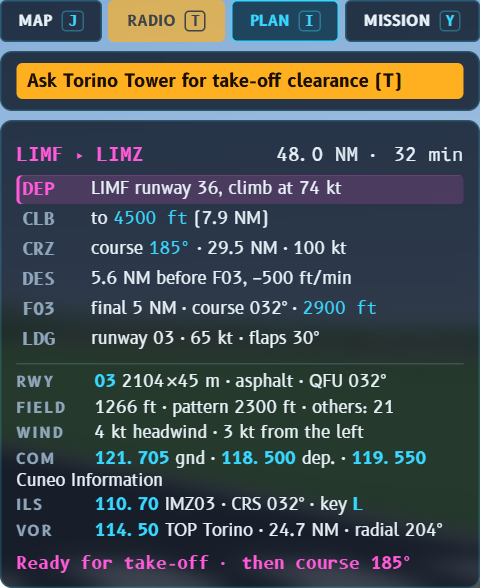
The simulator plans the flight to the destination by itself:
| DEP | take-off, then climb at 74 kt |
| CLB | climb to cruising altitude |
| CRZ | cruise at 100 kt on the course shown |
| DES | descent at 500 ft/min |
| F27… | final approach point, 5 NM before the runway |
| LDG | landing at 65 kt with flaps 30° |
The route (magenta line on the map) is the one a pilot would fly: after take-off you climb straight ahead to 1.5 NM past the runway before turning (point D36); on arrival you join the final at 30° at most (I27) or, when arriving from the runway side, with a downwind and a base leg (W27, B27). On local flights (destination = departure) you fly the circuit: climb past the runway, crosswind, downwind, base and a short 1.5 NM final. On the map the turns are drawn as arcs and the route switches to the next point a little early, as in a fly-by turn.
The cruising altitude follows the visual flight rule: 1000 ft above the highest terrain along the route; eastbound (courses 000–179°) at odd thousands + 500 ft, westbound at even thousands + 500 ft.
Below are the details of the arrival runway: length, surface, field elevation, pattern altitude and the wind relative to the runway. When available you also see the ILS frequency (tune it with L) and the VOR nearest to the destination. The last line changes during the flight and tells you what to do now.
8. The G1000 cockpit
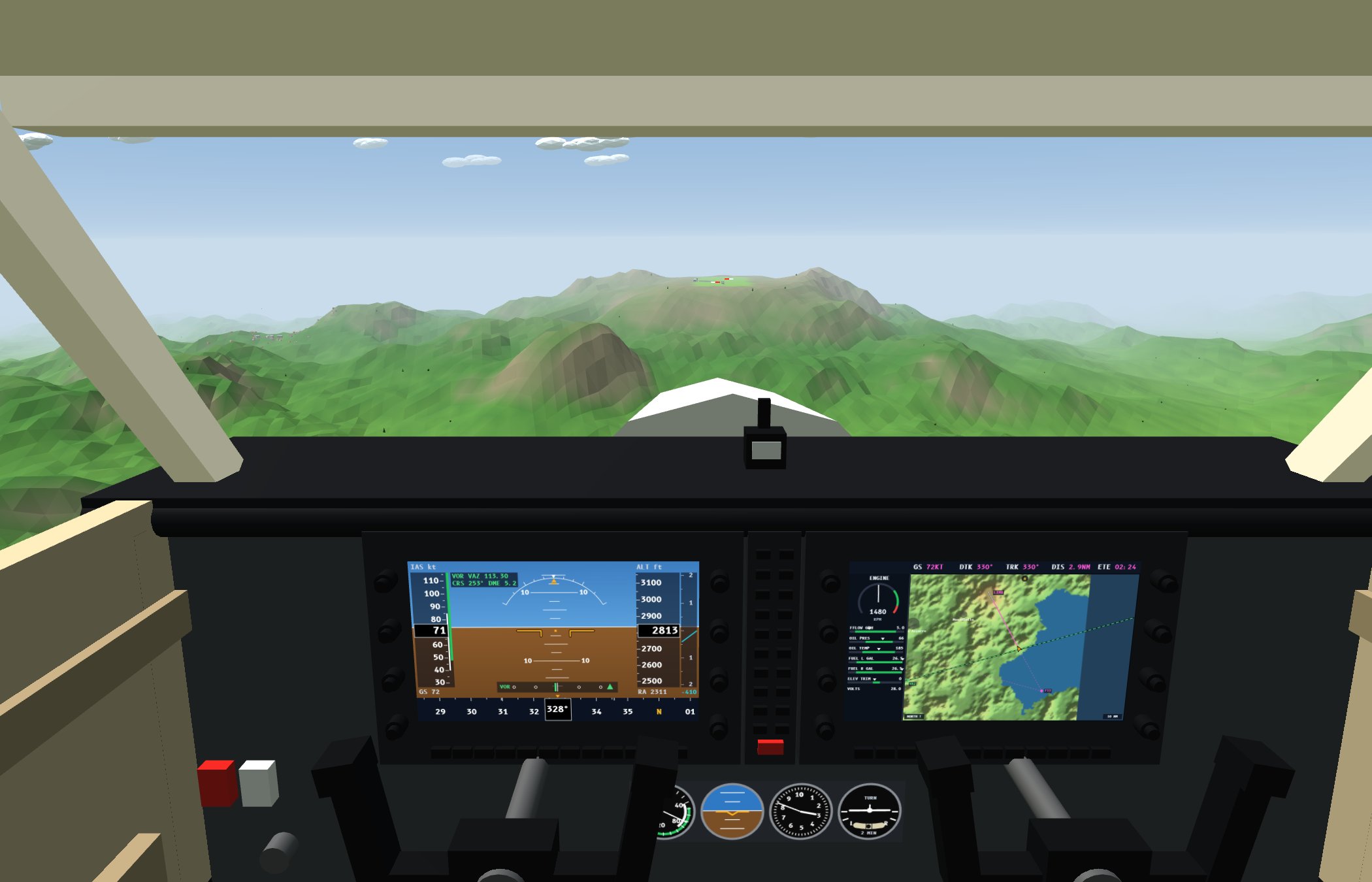
- Left screen (PFD): the same PFD described above.
- Right screen (MFD): at the top GS, DTK (desired track), TRK (actual track), DIS (distance) and ETE (time en route). On the left the engine column: RPM, fuel flow (FFLOW), oil, the two tanks (FUEL L and R) and the trim (ELEV TRIM). On the right the map.
- Standby instruments, below the screens: airspeed indicator, attitude indicator, altimeter and turn coordinator, as in aircraft without screens.
- The yokes, throttle, flap lever and trim wheel move with the controls.
In the cockpit you can look around: hold the right mouse button and drag (for example to see the runway beside you in the traffic circuit). Release it and your gaze stays there: to look forward again press the mouse wheel (which also resets the zoom). In the outside view the same button orbits the camera around the aircraft.
The third view, tower, watches the aircraft from the nearest control tower and follows it with the zoom: perfect for replaying a landing.
9. Take-off step by step
- Flaps 10°: press F once.
- Throttle 100%: 0 (or hold +).
- Stay on the centre line with small touches of rudder, Q / E.
- At 55 knots pull gently (S) until the nose is about 8–10° up: the aircraft lifts off by itself. The ground roll is about 240 m.
- Hold about 74 knots (best rate of climb, about 570 ft/min). If the speed drops, lower the nose a little.
- Above 500 ft retract the flaps (G) and use the trim (Z/X) so you do not have to hold the stick.
- Follow the magenta triangle on the compass towards the destination.
Starting from the parking area: taxiing
If you choose Start: from the parking area in the briefing, you are stopped on the apron with the engine idling. In the Piedmont world, at 18 Italian airports (Caselle, Malpensa, Linate, Cuneo, Aosta, Bresso, Genoa…), aprons and taxiways are the real ones, taken from OpenStreetMap with their names (A, B, L, G…); at the other airports there is a simple apron next to the main runway. On the ground there are yellow lines: the lead-in line, the taxiway centre line and the holding point (two solid and two dashed lines) before the runway. Follow the yellow line on the ground; on the map (0.5 NM scale) the same route is drawn in magenta.
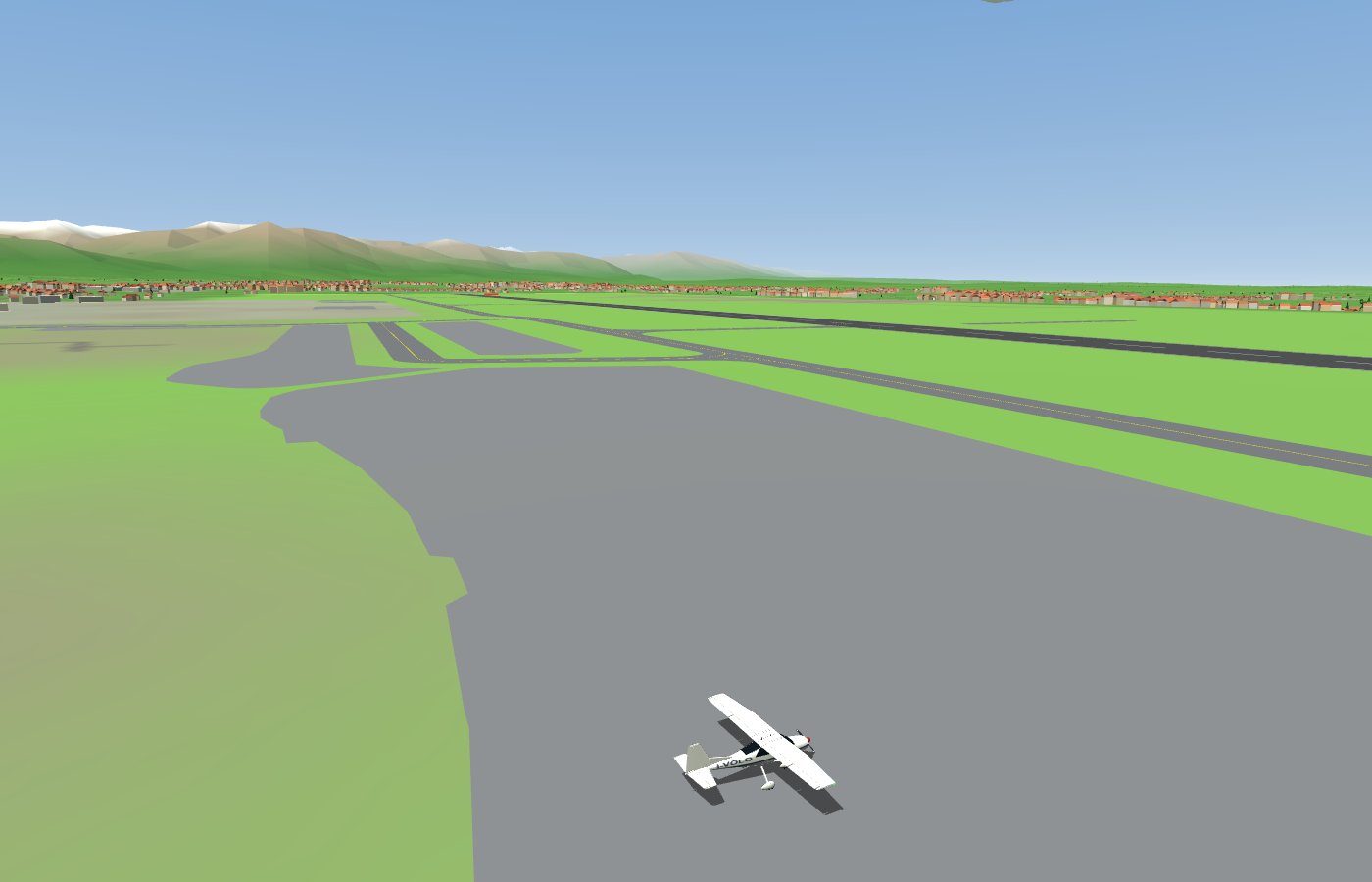
Where the taxiways are real (Piedmont world, 18 airports): Milan-Malpensa (LIMC), Milan-Linate (LIML), Turin-Caselle (LIMF), Genoa (LIMJ), Cameri (LIMN), Turin-Aeritalia (LIMA), Aosta (LIMW), Biella-Cerrione (LILE), Milan-Bresso (LIMB), Cuneo-Levaldigi (LIMZ), Varese-Venegono (LILN), Vergiate (LILG), Albenga (LIMG), Voghera-Rivanazzano (LILH), Vercelli (LILI), Alessandria (LILA), Alzate Brianza (LILB), Casale Monferrato (LILM).
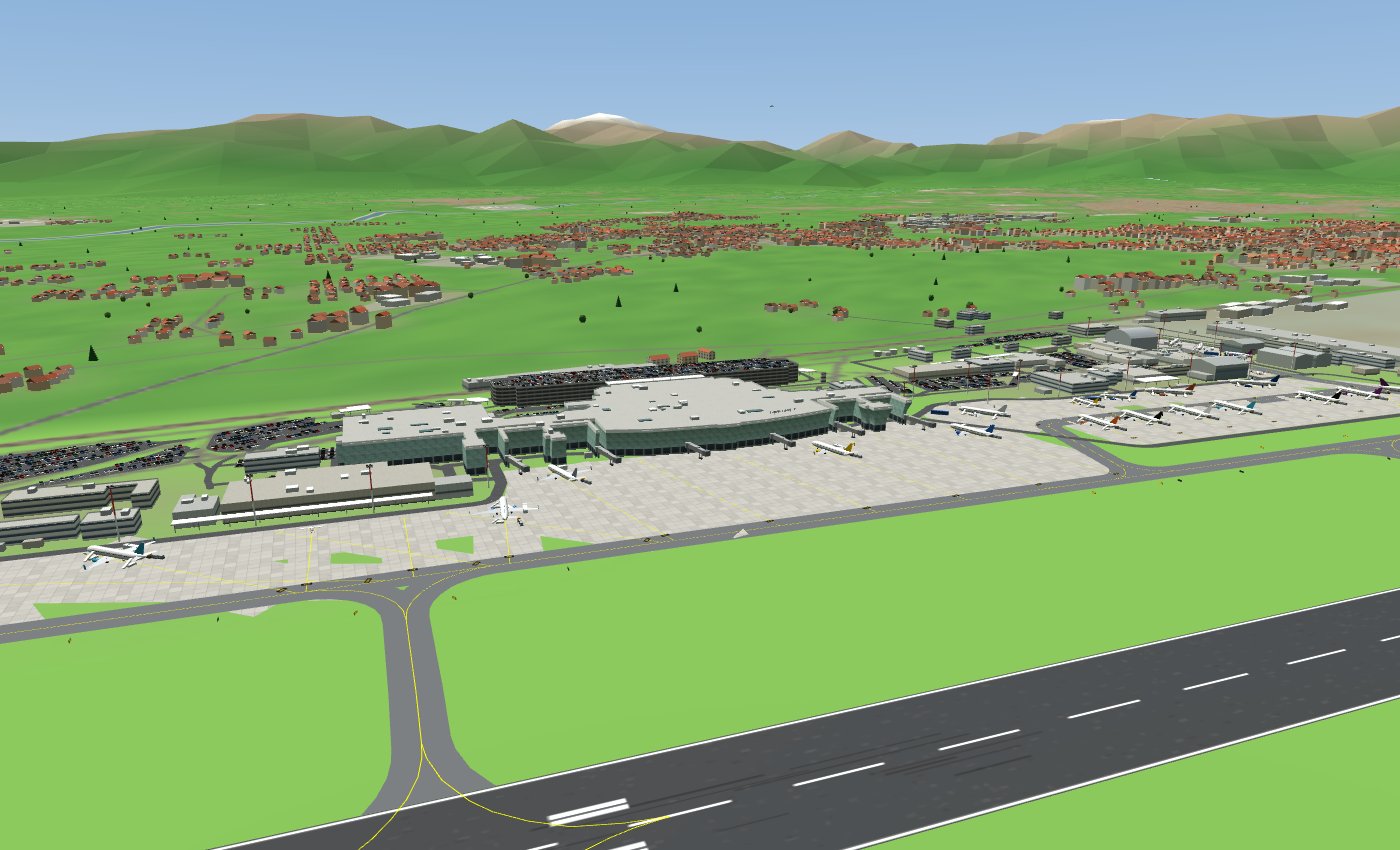
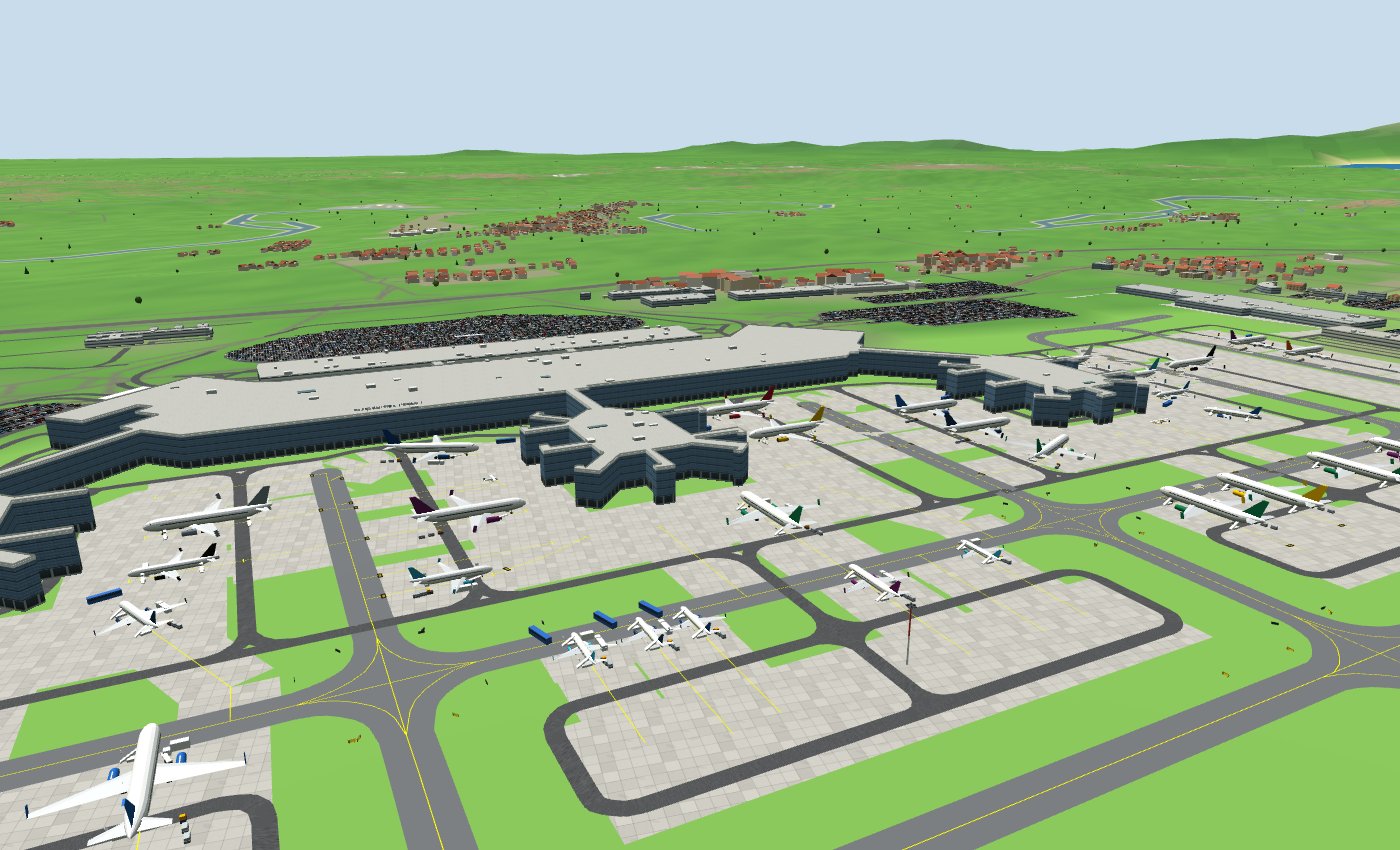
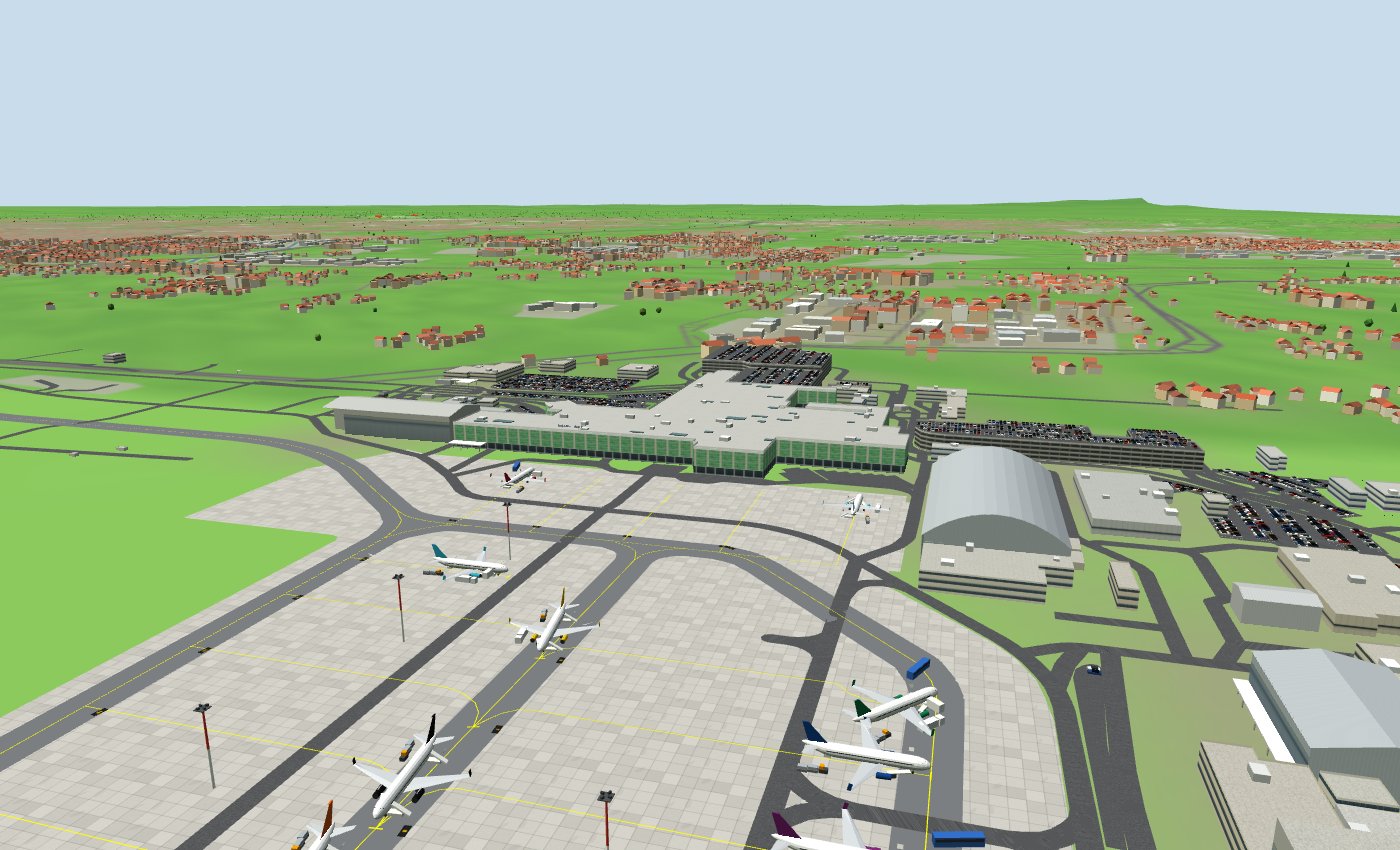
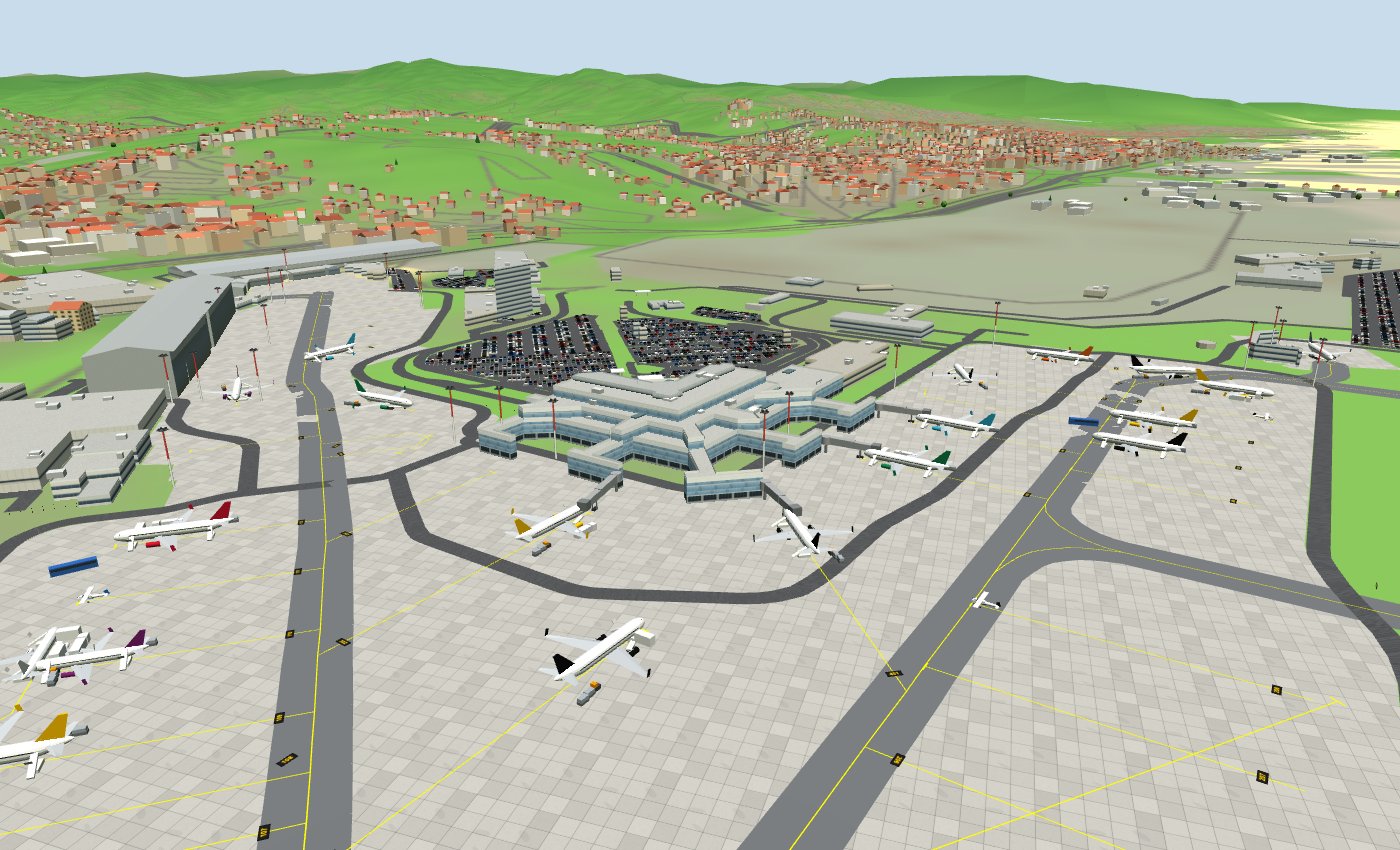
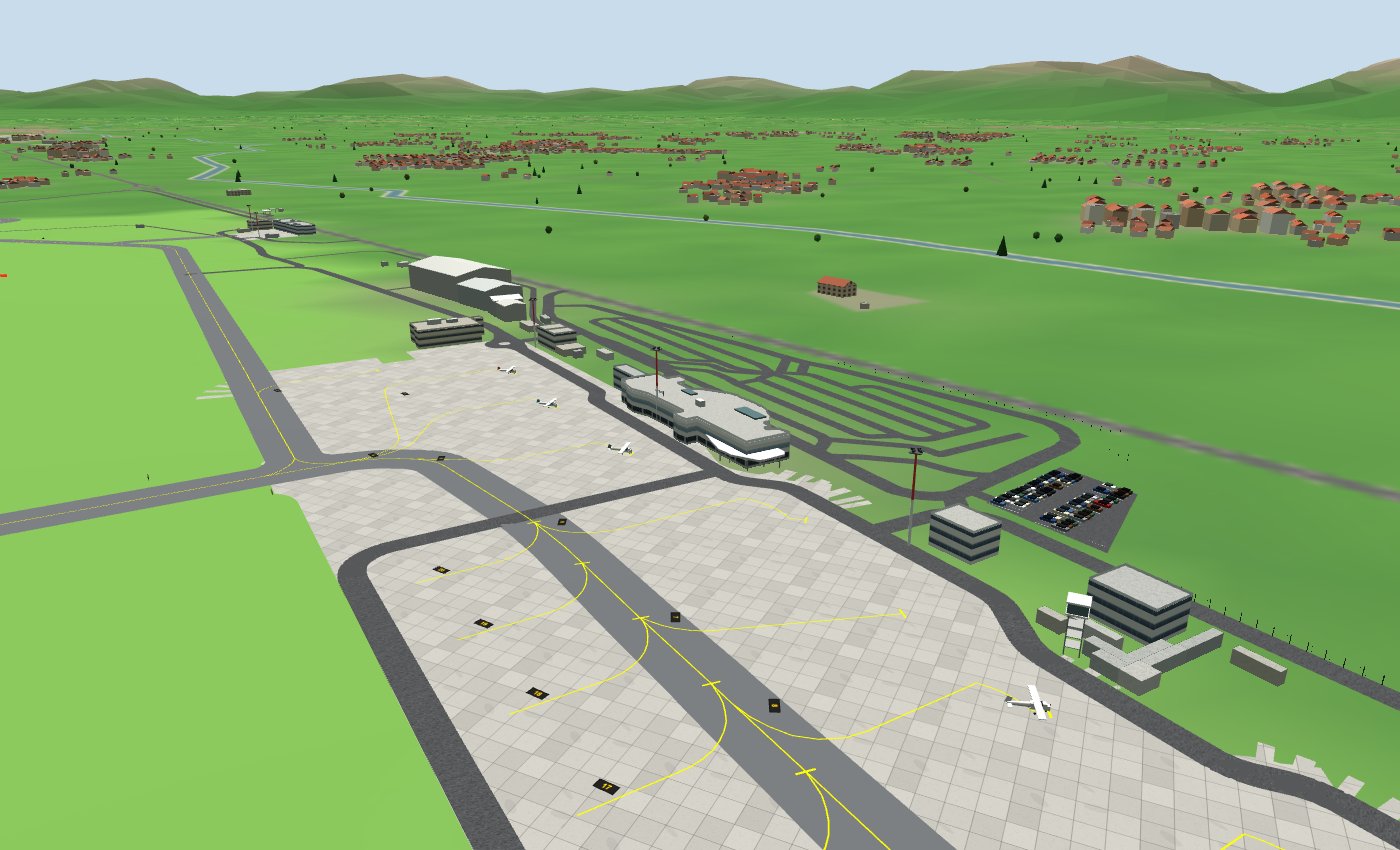
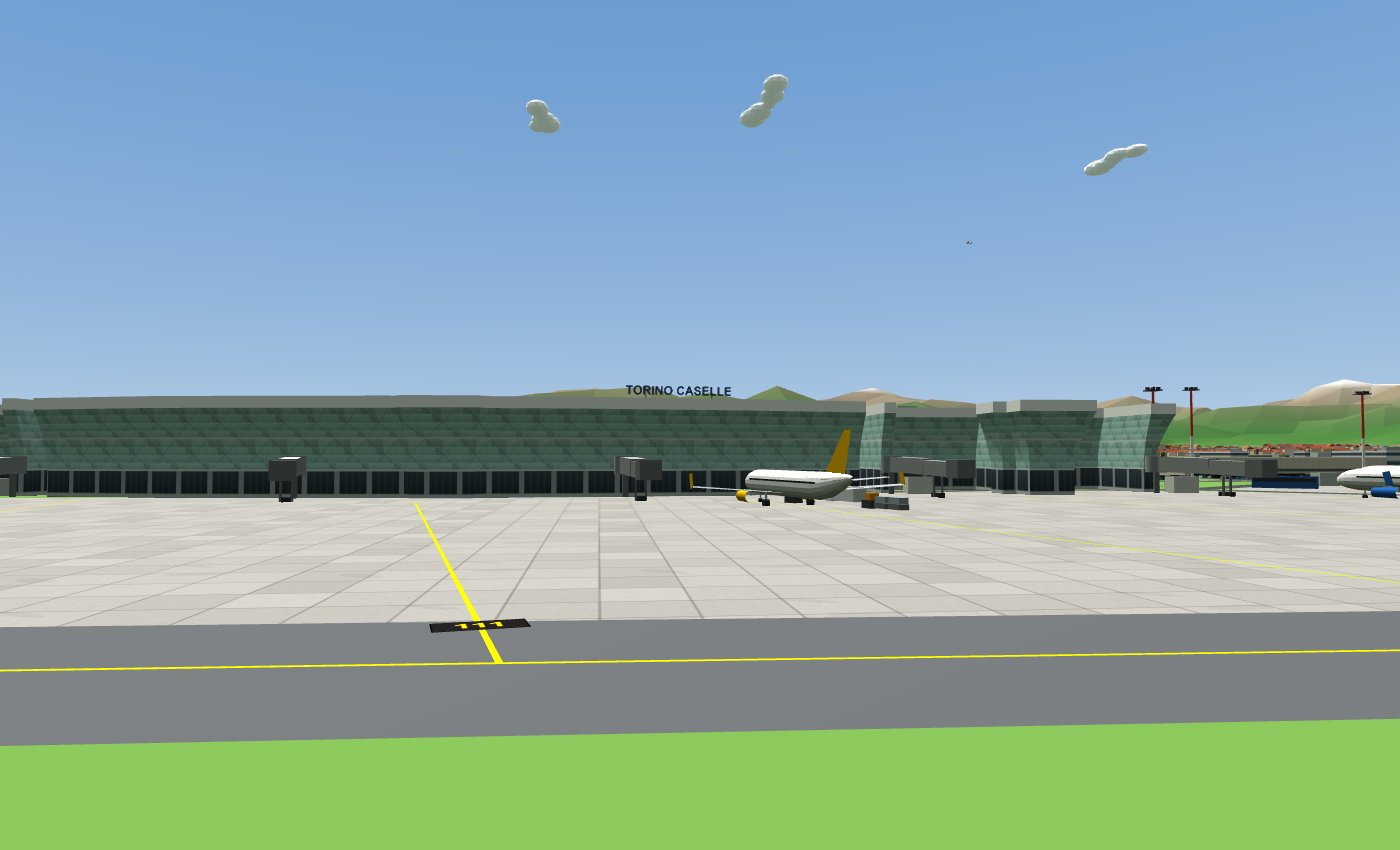
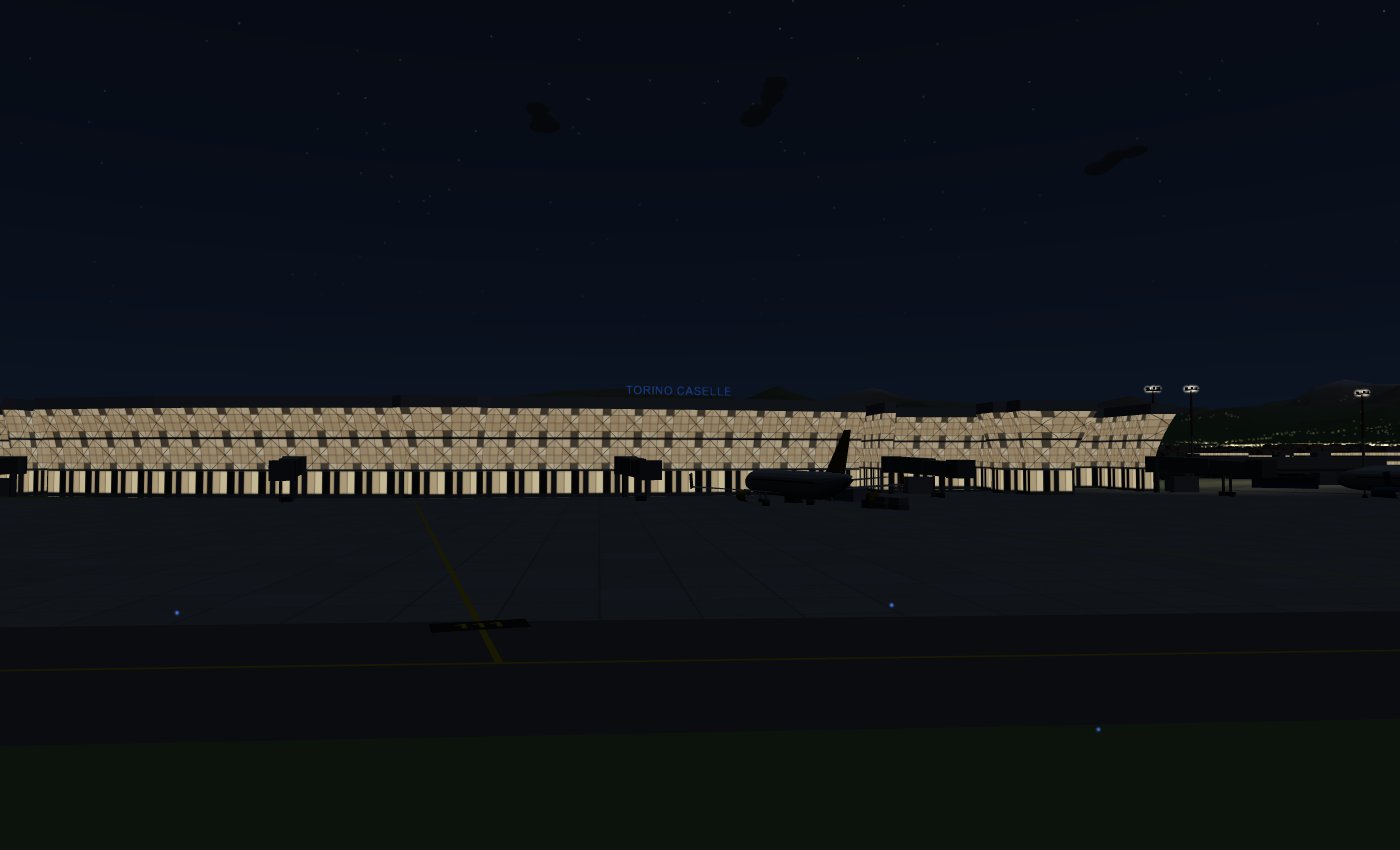
The five large airports — Turin-Caselle, Milan-Malpensa, Milan-Linate, Genoa and Cuneo-Levaldigi — are drawn like the real ones, with the outline of every building taken from OpenStreetMap: the terminal with its glass façade (aqua-green at Caselle, blue at Malpensa, green at Linate), the hangars with their doors facing the apron, cargo buildings, multi-storey car parks, the control tower (the tower view, key C, starts right there), rotating radars, red-and-white floodlight masts, jet bridges, stands with their number painted on the ground, parked airliners with ground vehicles, car parks full of cars and the fence with barbed wire. At night the glass façades are lit and the floodlight masts light up the apron.
On the roof of the terminals there is the name of the airport in large blue letters, facing the runway and the road (lit at night). At Caselle the glass façade facing the runway is not straight: above the ground floor it leans outwards, like the real one.
Taxiway signs
At the airports with real taxiways, at the junctions there are signs like the real ones, usually on the left of the taxiway:
- the location sign, with a yellow letter on a black background and a yellow border, tells you which taxiway you are on;
- the direction signs, with black letters on a yellow background and an arrow, tell you where the other taxiways go: those turning left are to the left of the location sign, those turning right to the right;
- at the holding point there is the red sign with the runway numbers (for example 36-18): beyond that sign you enter the runway, so you need the tower's clearance.
At night the signs are lit.
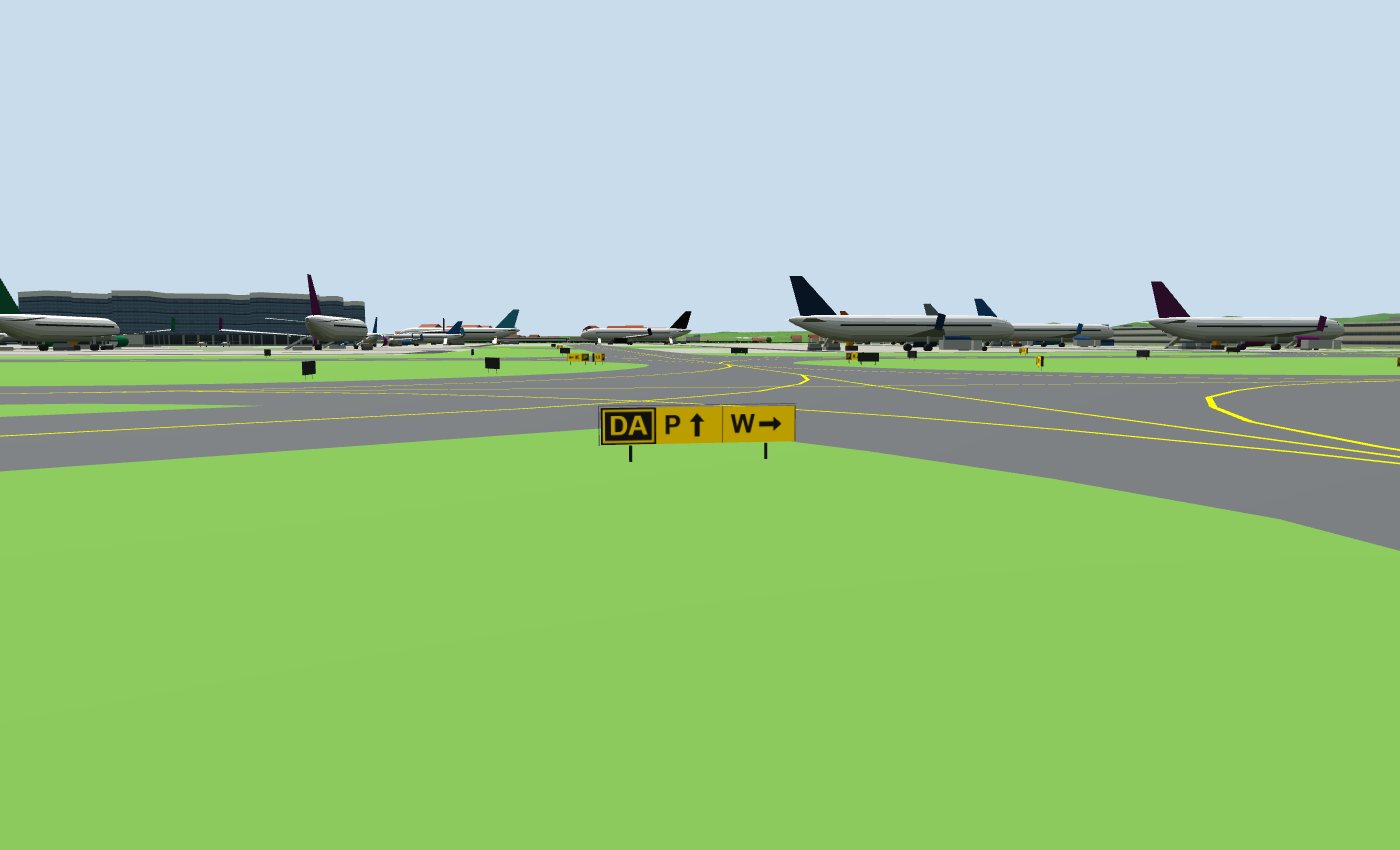
At Casale Monferrato, and on runway 10/28 at Turin-Aeritalia, the taxiways drawn in OpenStreetMap do not reach the runway: if you start “from the parking area” you start directly on the runway.
Where there is the simple apron (14 airports): Novi Ligure (LIMR) and Moncucco-Vische (LIVV), which have no taxiways in OpenStreetMap; the Swiss airports (Lugano-Agno, Locarno, Sion, Bex, Saanen, Ambri, Raron, Sankt Stephan) and the French ones (Courchevel, Megève, Barcelonnette, Mont-Dauphin), because the data used only cover north-west Italy. In the invented Valle Azzurra world every airport has the simple apron.
- Ask the tower for taxi: T, “request taxi”. The tower (or Ground) answers “taxi to holding point runway … via L, G” with the taxiways to follow and the QNH: read it back.
- Taxi slowly (below 15 knots, otherwise TAXI SLOWER appears): a little throttle, steer with Q/E, brake with B.
- Stop at the holding point, before the runway, and call: “holding point runway …, ready for departure”.
- If a taxiway reaches the threshold the tower answers “line up runway …, cleared for take-off”: enter the runway, line up and take off. If the taxiway joins the runway half way it answers “enter and backtrack runway …, line up, cleared for take-off”: enter the runway, taxi back along it to the threshold, turn around and take off.
After landing, as soon as you slow down, you get directions to the parking: at airports with real taxiways you are assigned a free stand with its number (at the five large airports, drawn with their real stands) or the apron, with the taxiways to follow (“taxi to stand 202 via H, E”). The tower also tells you on the radio, the map switches to the 0.5 NM scale and shows the route in magenta from where you are; on the ground follow the yellow line to the stop bar of the stand. Once you have stopped there (or on the apron) the flight is over and you can prepare the next one: the route to the runway will start from your stand. At night the taxiway and the apron have blue lights.
10. In flight: attitude, trim, turns
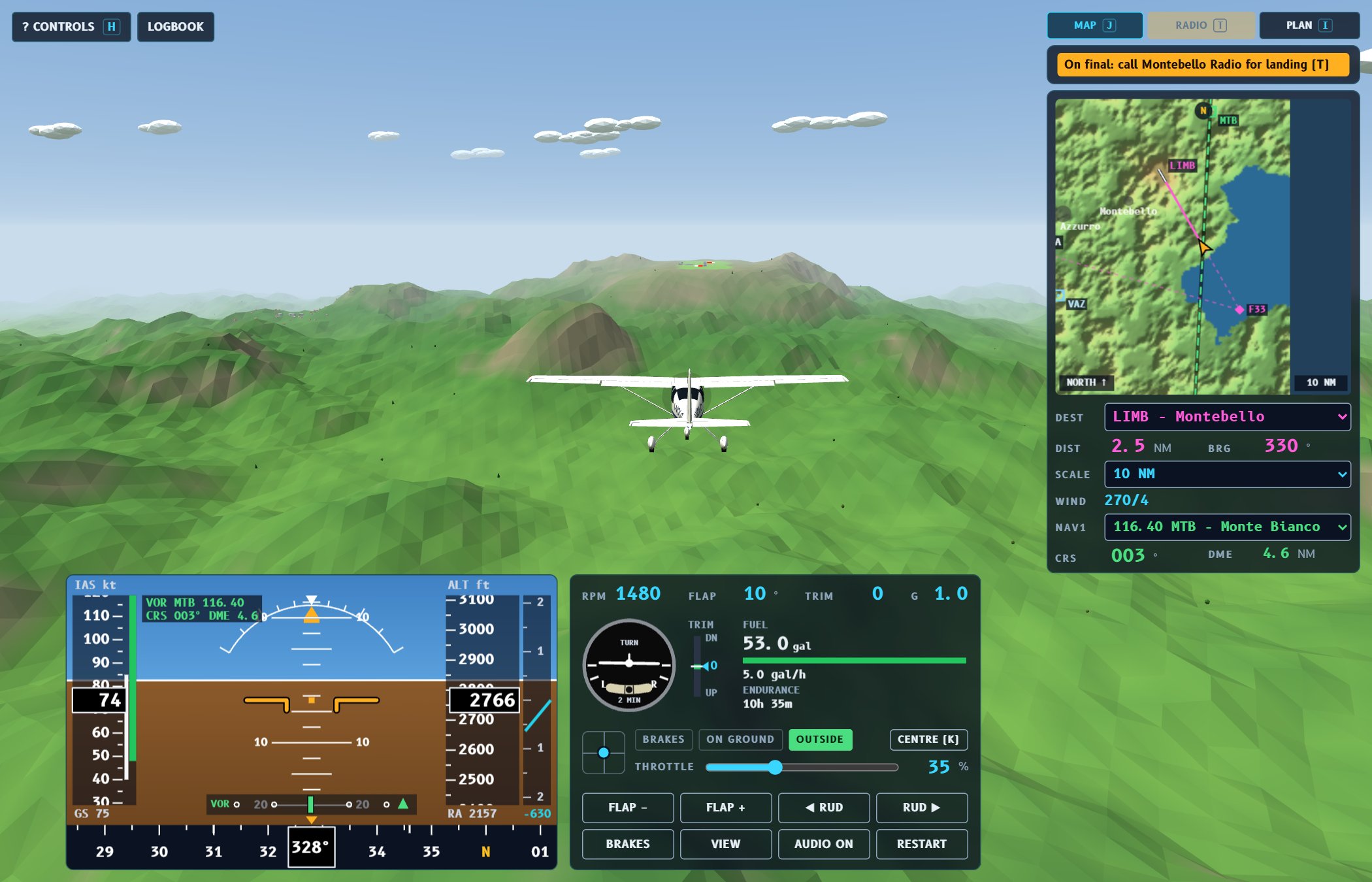
Attitude + power = performance. The nose sets the speed, the throttle decides whether you climb or descend. To stay level at 100 kt you need about 65% throttle with the nose on the horizon.
- Small corrections: short taps on the keys, then wait a few seconds for the aircraft to respond. The Cessna is stable: when well trimmed it almost flies by itself.
- Trim: when the aircraft flies the way you want, press Z or X until you no longer need to hold the stick, then centre it with K.
- Turning: bank 15–30° with A/D, bring the ailerons nearly back to the centre and pull very slightly so you do not lose height. To roll out, bank the other way. A 30° turn can be felt: about 1.15 g.
- Stall: below about 48 kt without flaps (40 kt with flaps 30°) the wing stops lifting. The horn sounds and STALL appears. Lower the nose at once and add power.
Flying at night
Choose Night (or Sunset) in the briefing under Time of day. At night the landscape is dark and you find your way by the lights:
- towns are carpets of lights (made from the real buildings): Turin, Novara and Cuneo can be recognised from far away;
- runways have white edge lights, a green row at the threshold and, on long runways, approach lights in front of the threshold (300 m of centre line and a crossbar). Where they really exist (Caselle 36, Malpensa 35L and 35R, Linate 36, Genoa 29, Cuneo 03) they are Calvert lights: 900 m of centre line with five crossbars and a row of flashes running towards the runway twice a second. As at real airports, the lights stop before the first road or houses: at Caselle, Genoa and Cuneo they are shorter than 900 m; at Caselle, Malpensa and Linate (CAT II/III) the last 300 m also have two red side rows, and the runway has touchdown zone lights;
- the PAPI works as in daytime;
- the aircraft switches on its landing light, which lights up the runway ahead, and its navigation lights (red on the left, green on the right, white on the tail, strobe).
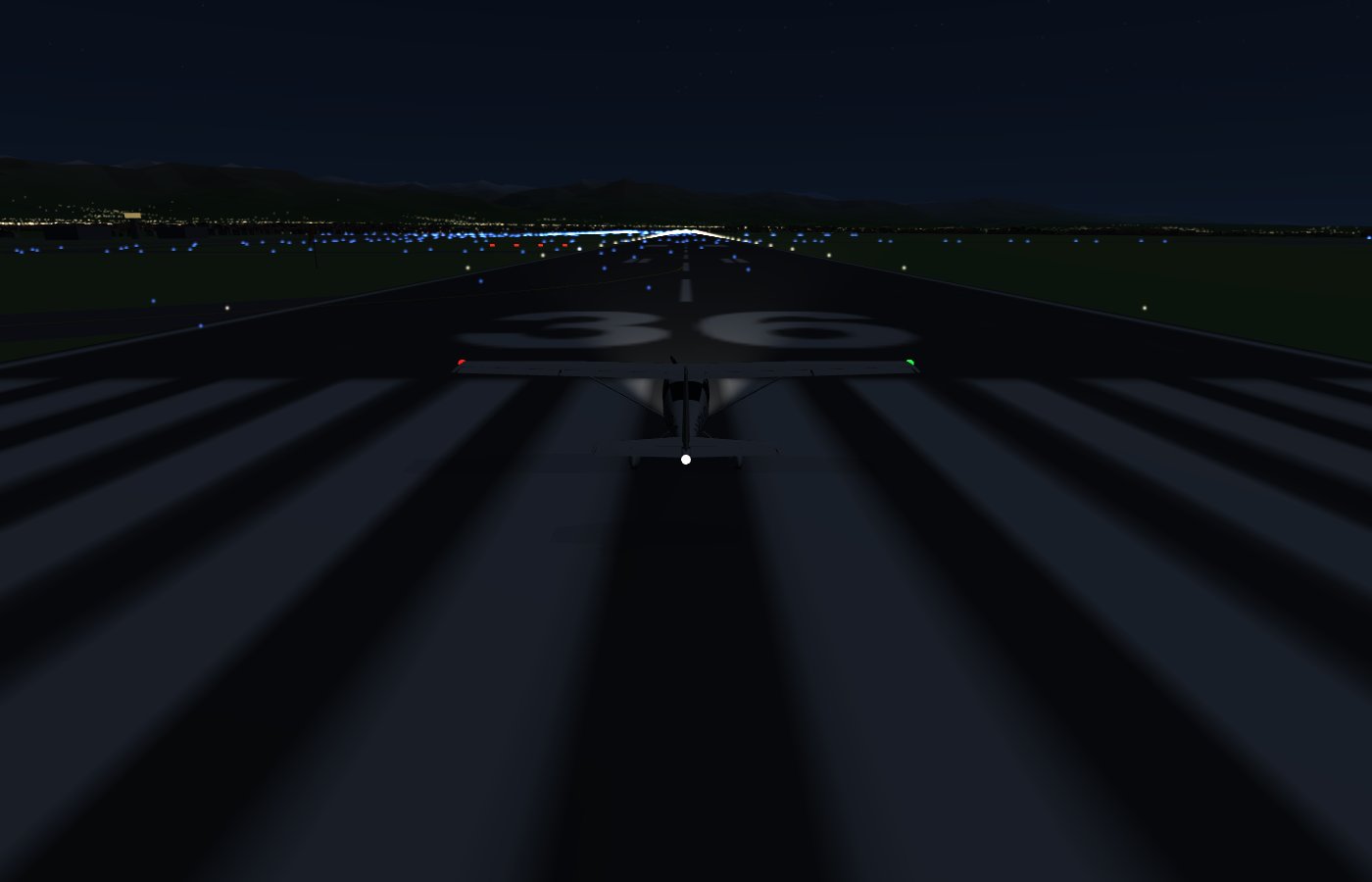
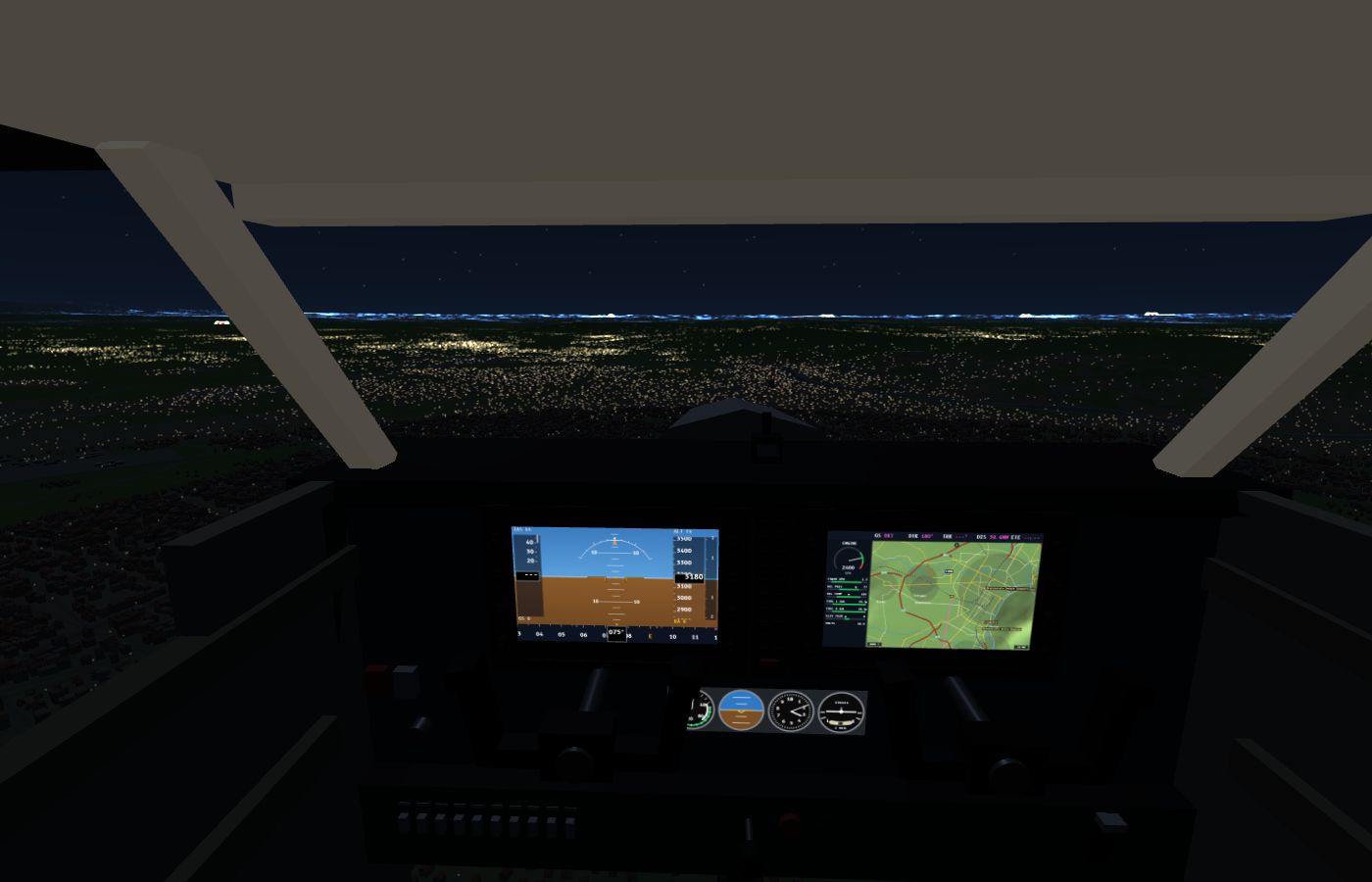
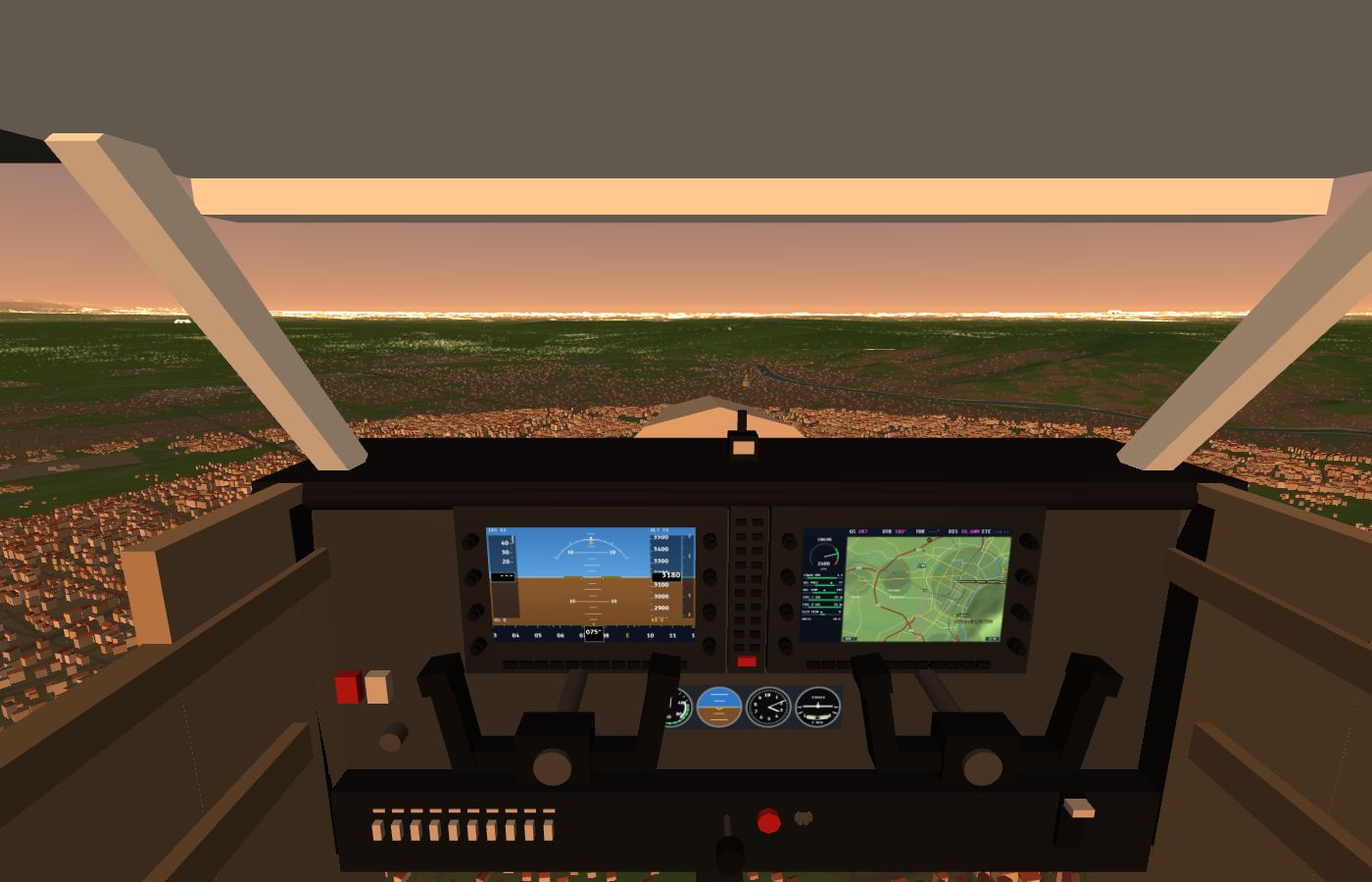
At night the instruments matter more than usual: watch attitude, altitude and the radio altimeter, and use the ILS to arrive lined up.
Weather
In the briefing, under Weather, choose the weather you want. None (calm weather) is the usual quiet weather: light wind and a few clouds. The other scenarios make the flight more realistic, but also harder:
- Fair weather with thermals: scattered cumulus; under the cumulus the air rises (thermals) and around them it sinks a little. The flight is slightly bumpy. Daytime only.
- Strong gusty wind: 18–26 knots gusting 10–15 more, from a random direction, so often across the runway. Near the mountains there is turbulence; on the side the wind comes from the air rises, on the other side it sinks.
- Overcast, low cloud: a continuous grey layer 1000–1500 ft above the ground, a gloomy sky and drizzle. Above the clouds the sun is shining.
- Rain: cloud at about 2000 ft, visibility 3–5 km, wet runway (the brakes grip less).
- Thunderstorms: cumulonimbus up to 9 km high scattered around, with lightning and thunder. Underneath there is a column of heavy rain with downdrafts and gusts: keep away, fly around them.
- Fog in the plain: the plain lies under a layer of fog 200–300 m thick (visibility 400–900 m), above it the sky is clear and the mountains stick out of the fog. Take-off and landing are only possible by instruments: use the ILS.
- Snow: overcast, falling snow, visibility 2–4 km, snowy slippery runway.
- Random: one of the scenarios, picked at random.
Every time the wind, cloud base, temperature and QNH change a little; the New weather button in the briefing prepares another one of the same kind. The suggested runway is the one most into the wind.
The briefing shows the METAR of the departure airport, the report real pilots read, decoded. For example LIMF 211150Z 24015G25KT 4000 RA BKN020 12/10 Q1004 means: wind from 240° at 15 knots gusting 25, visibility 4000 m, rain, broken cloud at 2000 ft, temperature 12°, dew point 10°, QNH 1004 hPa. If the weather is below VFR minima (under 5 km visibility or cloud below 1500 ft) the briefing says so in red. In flight you can ask the tuned station for the weather: T → request weather.
What changes for the aircraft: higher up the wind gets stronger and veers; when it is hot the air is thinner, so the take-off run is longer and the climb slower; on a wet or snowy runway braking is weaker. Inside a cloud you see nothing: keep the wings level by watching the attitude indicator. In bad weather the other aircraft in the circuit stay on the ground.
11. Landing and PAPI
- Reach the final approach point (5 NM) at the altitude in the plan, lined up with the runway.
- Speed 65 knots, flaps 30° (F three times, below 85 kt).
- Descend at about 500 ft/min following the PAPI, the four lights on the left of the runway:
- two white and two red = correct slope (3°);
- or all white = you are too high;
- or all red = you are too low: add power!
- A few metres above the ground close the throttle and flare gently: pull the stick to keep the nose slightly up and let the aircraft settle on the main wheels.
- On the ground brake with B or Space.
The game rates the touchdown by the vertical speed:
| Vertical speed at touchdown | Rating |
|---|---|
| less than 120 ft/min | Butter! Perfect landing |
| 120–250 ft/min | Great landing |
| 250–450 ft/min | Good landing |
| 450–700 ft/min | Hard landing |
| more than about 700 ft/min | Landing gear destroyed |
The message also tells you how many metres past the threshold and from the centre line you touched down. The ideal point is about 300 m past the threshold.
Taking off again
Once you have stopped, the airport where you landed becomes the departure of the next flight: the flight plan is recalculated (if you had reached your destination, the nearest airport is suggested; change it with N or the DEST menu) and the radio reminds you to ask for take-off. Taxi to the start of the runway and ask for clearance with T. Fuel and position stay as they are; from then on R restarts from this airport.
12. Missions and logbook
In the briefing, under Mission, you can give the flight a goal. Each mission is worth 0 to 3 stars. A strip at the top centre shows the objective and the clock; the MISSION tab (Y) has all the details. R restarts the mission from the beginning.
Against the clock
Land at the destination chosen in the briefing within a time limit, worked out from the distance (cruise at about 95 knots, plus a few minutes for take-off and landing, and 4 more minutes if you start from the parking area). The clock starts at once and stops when the wheels touch the runway.
- ★ you arrive in time;
- ★★ and the landing is good: on the runway, under 450 ft/min;
- ★★★ and at least a fifth of the time is left.
Tour
The short tour has 2 stops, the long tour 3, picked at random among nearby airports; at the end you fly home. The Another tour button in the briefing draws a new one. A stop counts when you touch its runway: you can stop or do a touch-and-go (full power as soon as you touch down), which saves time. The destination moves to the next stop by itself.
- ★ tour completed;
- ★★ and every landing good;
- ★★★ and within the reference time.
Precision landing
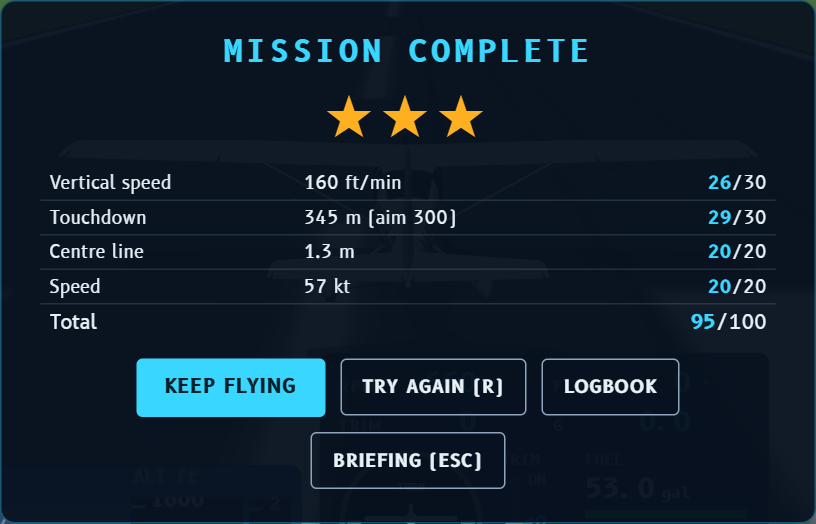
You start on final for the arrival runway, as with Practise landing. At the first touchdown the game gives up to 100 points:
| 30 | vertical speed: full marks up to 100 ft/min, zero from 600 |
| 30 | touchdown point: within 30 m of the aiming point, abeam the PAPI (300 m past the threshold on long runways) |
| 20 | centre line: within 1 m |
| 20 | airspeed between 45 and 62 knots |
★ from 40 points, ★★ from 65, ★★★ from 85. Off the runway the mission fails.
When the aircraft stops, the result window opens, with the details and a tip to improve. From there you can keep flying, try again (R), open the logbook or go back to the briefing.
The logbook
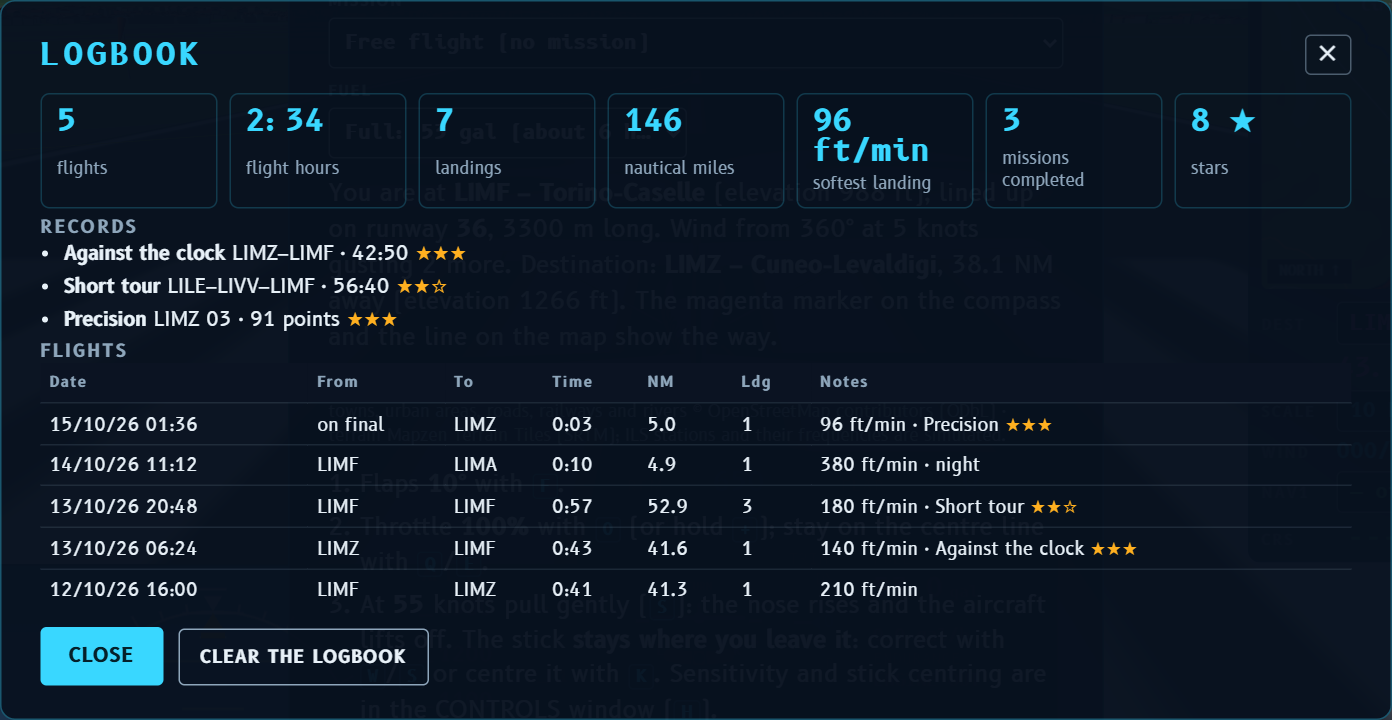
Like a real pilot's, the logbook fills itself in: each flight runs from take-off until you stop after landing (or until a crash). For every flight there are the date, departure and arrival airports, time, miles flown, landings with their vertical speed, time of day and any mission with its stars. At the top are the totals (flights, hours, landings, miles, softest landing, missions and stars) and the records: the best precision score and the best times. Open it from the LOGBOOK button, the briefing, the pause screen or the result window; it stays in your browser and can be cleared.
13. Autopilot
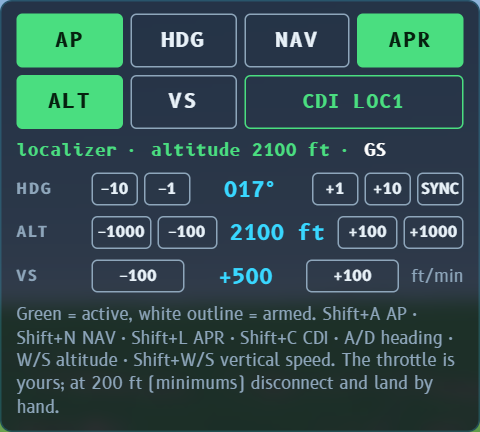
Today's Cessna 172 with G1000 usually has the Garmin GFC 700 autopilot; the simulator's one is a simple version of it. Shift+A (or the AP button in the AP tab) engages it: from then on it holds the heading and the altitude you had, rounded to 100 ft. It only engages in flight.
The AP tab has the mode keys, as on the GFC 700 panel; the active mode is lit in green. Clicking a mode with the autopilot off also engages it:
- AP: engages or disconnects the autopilot;
- NAV and APR: follow the course and the ILS (see below);
- HDG: follows the selected heading; press it again for ROL, wings level (the aircraft flies straight wherever it is pointing);
- ALT: holds the current altitude;
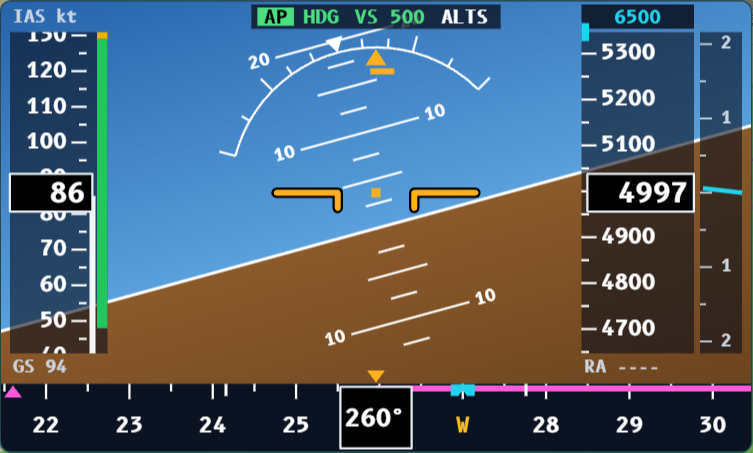
- VS: holds the current vertical speed (rounded to 100 ft/min), which you then change with the VS buttons or Shift+S/W, negative to descend. If the selected altitude is ahead of you (above in a climb, below in a descent) it captures it by itself when you get there (ALTS); otherwise it keeps climbing or descending.
With the autopilot engaged the stick keys no longer move the aircraft; they change the selected values:
| A / D | selected heading −1° / +1° (hold to run). The aircraft turns towards it with at most 20° of bank |
| S / W | selected altitude +100 / −100 ft (like pulling or pushing the stick) |
| Shift+S / W | vertical speed +100 / −100 ft/min (below zero you descend); from ALT it switches to VS starting from 0 |
| Shift+H | selected heading = current heading |
| Shift+A | disconnect the autopilot |
At the top of the PFD the mode bar tells you what it is doing: AP engaged, HDG follows the selected heading (the cyan bug on the compass), ALT holds the altitude or VS 500 climbs or descends to the selected altitude (shown in cyan above the altitude tape), and ALTS means it will capture it by itself when it gets there.
The throttle is yours, as in the real 172. If in a climb the speed drops towards 65 knots, the autopilot lowers the nose so as not to lose more and MIN SPD appears: add power. If in a descent it goes above the maximum cruise speed, MAX SPD appears: reduce power.
The autopilot moves the elevator and, slowly, the trim: when you disconnect it the aircraft is already in balance. It disconnects by itself, with three falling tones, if you take the stick with the mouse or gamepad, in a stall or if the attitude goes out of limits.
Navigating with the autopilot: CDI, NAV and APR
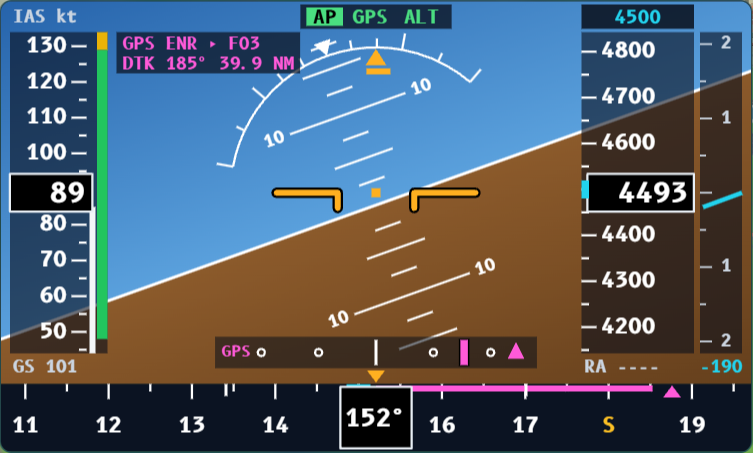
As on the G1000, the CDI key (in the AP tab, or Shift+C) selects the navigation source: GPS, the magenta course of the flight plan, or NAV1, the tuned VOR or ILS (VOR1 or LOC1). On the PFD the deviation needle is magenta with GPS and green with NAV1; with GPS the box at the top shows the next waypoint, the desired track DTK and the distance, and the scale is 2 NM (ENR) or 1 NM on the final leg (TERM). Tuning NAV1 (V, L or the menu) switches the CDI to NAV1; turning it off switches back to GPS.
- NAV (Shift+N): follows the CDI source, that is the GPS course or the VOR radial with the CRS you chose. If the needle is at full scale NAV stays armed (white): meanwhile it flies HDG towards the course and captures it by itself when the needle starts to move (it turns green). It tracks the ground track, so it corrects for the wind by itself.
- APR (Shift+L): ILS approach. The ILS must be tuned (L); the CDI switches to LOC1. It arms LOC and GS: you usually arrive in HDG and ALT, the LOC is captured and the aircraft lines up with the runway; when the 3° glide slope comes down to the aircraft the GS is captured and the descent begins. Hold the speed with the throttle (70–90 knots) and lower the flaps.
- Minimums: the 172 does not land itself. At 200 ft above the runway MINIMUMS flashes with a tone: disconnect the autopilot (Shift+A), reduce power and land by hand.
- Changing the CDI source while in NAV or APR puts the autopilot in ROL (wings level), as in the real aircraft: then press NAV or APR again. The same happens if the signal is lost.
14. Navigating with a VOR
A VOR is a ground radio station that transmits in all directions. The receiver on board works out which radial you are on, that is, in which direction you are as seen from the station: on radial 090 you are east of the station. If the station has DME, you also know how many miles away you are.
- Tune it: press V (several times to move to the other stations in range) or choose from the NAV1 menu. The CRS course is set direct to the station.
- Choose the course with , and . (with Shift in steps of 10°).
- Read the needle: if it is on the right, the course is to your right. Turn 20–30° towards the needle to intercept it, then when the needle centres put the heading on the CRS course.
- TO / FROM: with TO the course leads you towards the station, with FROM away from it. When you fly over the station it changes from TO to FROM.
- With a crosswind, keep the nose a few degrees into the wind to stay on course.
Stations can only be received within a certain distance, and the higher you are the further they reach (the signal travels in a straight line, like light). If you see OUT OF RANGE, climb or get closer.
In the Piedmont world the VORs are the real ones, for example TOP Torino 114.50, CSL Caselle 116.75, VOG Voghera 115.50, SRN Saronno 113.70 and BLA Biella 116.10. One difference from reality: the simulator uses degrees referred to true north, while real VORs use magnetic north, which in Piedmont is about 3° further east.
15. ILS approach
The ILS guides you all the way to the runway with two radio beams:
- the localizer (LOC) tells you whether you are left or right of the runway centre line. It is much more precise than a VOR: the needle is at full scale when you are 2.5° off;
- the glide slope tells you whether you are above or below the 3° slope. Full scale: 0.7°.
- Press L to tune the ILS of the arrival runway; the frequency is also in the flight plan.
- Approach the extended runway centre line at an angle of about 30°, 2000–2500 ft above the field, towards the final approach point.
- When the LOC needle moves towards the centre, turn onto the runway course (CRS). From now on make small corrections of a few degrees.
- When the glide slope diamond comes down to the centre, set flaps and power to descend at about 400–500 ft/min at 65 kt.
- Diamond above the centre = you are low, descend less. Diamond below the centre = you are high, descend more.
- Over the threshold you will be at about 50 ft: look outside, flare and land.
16. Radio communications with the tower
Communications are in English, with the standard international (ICAO) phraseology, as in real life. The tower speaks with a synthetic browser voice; you do not have to speak: press T, choose the sentence with 1…4 and the game says it with the pilot's voice. In the RADIO tab (T opens it by itself) every transmission stays written.
- Your callsign is I-VOLO (“India Victor Oscar Lima Oscar”). After the first call the tower uses the abbreviated one, I-LO.
- Numbers are said digit by digit: runway 27 = “runway two seven”, QNH 1016 = “Q N H one zero one six”, and 9 is “niner”.
- When the tower gives you a clearance you must read it back. Sometimes one of the answers is wrong, with a different runway, QNH or transponder code: if you choose it, the tower corrects you. Listen carefully!
- When the tower calls you, the RADIO tab flashes and an orange prompt appears. If you do not answer, after a while the tower calls again.
- Nobody talks while someone else is transmitting: wait until the end, then press T.
A typical flight
| When | Who | What is said |
|---|---|---|
| At the parking area (if you start there) | You | ask Ground (or the tower) for taxi: “… at the apron, request taxi” |
| Ground | “taxi to holding point runway … via …”, QNH and, where there is a Ground, “at holding point contact … Tower” with the frequency; you read it back | |
| At the holding point | You | on the tower frequency: “holding point runway …, ready for departure”; the tower answers “line up…” (or “enter and backtrack…” if the taxiway joins half way), “cleared for take-off” |
| On the runway, before leaving (runway start) | You | ask to depart: “… ready for departure” |
| Tower | runway, wind, QNH and “cleared for take-off”; you read it back | |
| 5 NM from the airport | Tower | “leaving the control zone, frequency change approved”; you say goodbye |
| 20 NM from the destination | You | call the arrival tower: position, altitude, “inbound for landing”, or request the ILS |
| Tower | straight-in approach, traffic circuit or “cleared ILS approach”, with QNH; then “report final” | |
| On final | You | “final runway …” |
| Tower | wind and “cleared to land”; you read it back | |
| After landing | Tower | “vacate the runway”, “taxi to stand…” (stand and taxiways) and welcome |
Other aircraft
Near the airports (not at Malpensa and Linate, where light aircraft do not fly circuits) there are also other light aircraft: one, or two where there is a tower. They fly the traffic circuit at 1000 feet (upwind, crosswind, downwind, base, final), touch the runway and take off again (“touch and go”). They have Italian callsigns, such as I-ABCD, and if COM1 is on the station's frequency you hear them on the radio with a third voice: they report “downwind” and “final” and the tower answers.
- On the map they are blue diamonds, with a short line in the direction of flight and the altitude difference in hundreds of feet: +10 = 1000 feet above you, −03 = 300 feet below.
- If you ask to depart while one is on short final, the tower answers “hold position”: read it back, wait until it has passed on the runway and call again.
- If there is another aircraft ahead of you on final, the tower says “number two, continue approach”: carry on; the landing clearance comes by itself when the runway is free. Do not land before!
- When another aircraft passes close to you, the tower gives you traffic information: “traffic, 2 o'clock, 1 mile, Cessna on downwind, same altitude” = traffic at 2 o'clock (ahead to the right), one mile away, on downwind, at your altitude. Answer “traffic in sight” or “looking out”.
- The other aircraft always give way to you: if you are on the runway or on final they extend downwind or go around (“going around”), and if you get too close they change altitude.
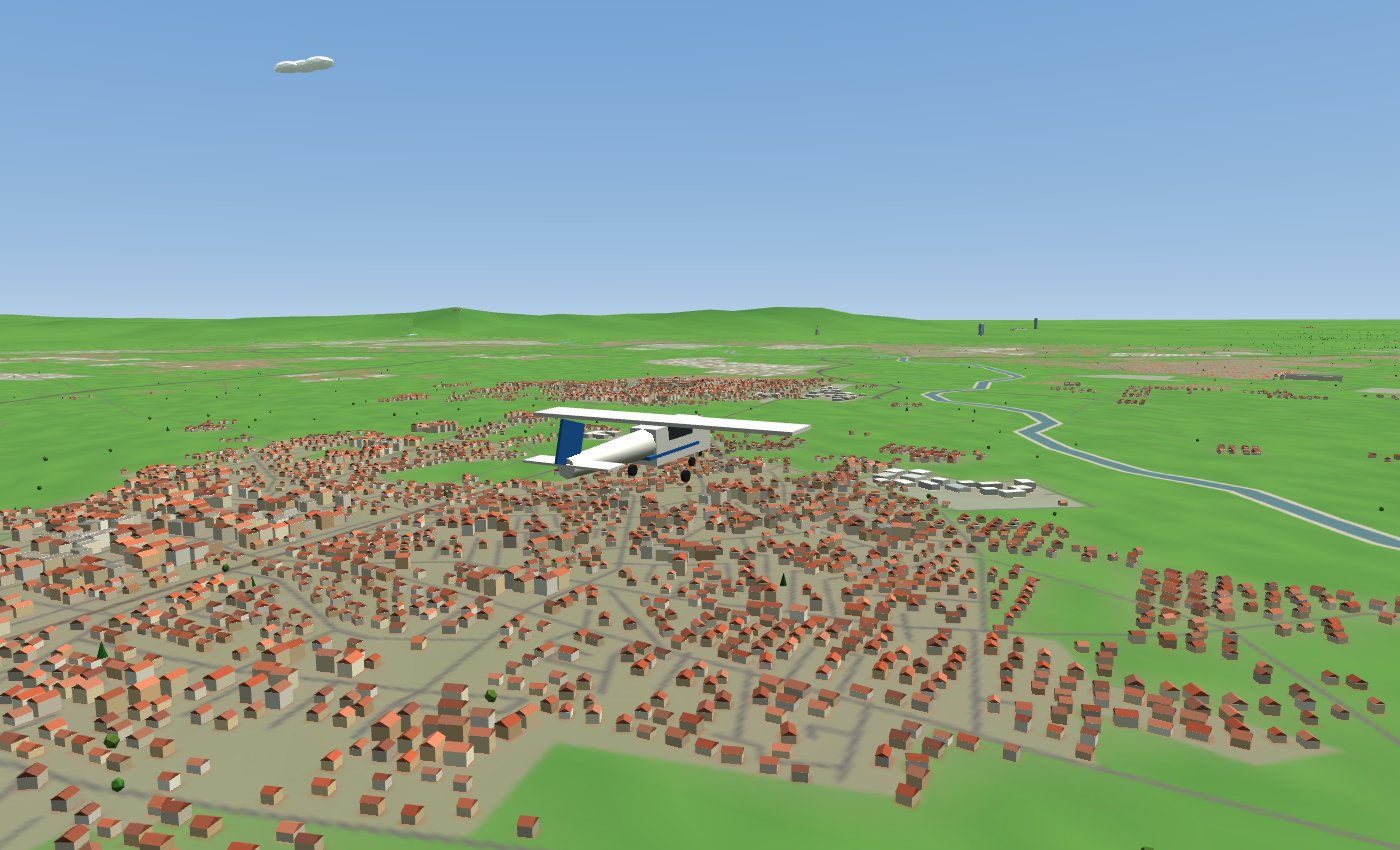
Tuning the radio (COM1)
Every airport has its own frequency, shown in the flight plan (COM line: departure and arrival) and in the COM1 menu of the RADIO tab. Before calling a station you must tune its frequency: from the COM1 menu or with the U key, which steps through the nearest stations. If you call on the wrong frequency nobody answers, as in real life, and the radio tells you which frequency you need. When you leave the control zone the tower also gives you the frequency of the arrival station: read it back and then set it.
If you do not want to think about frequencies, tick Automatic tuning: the game sets the right frequency when you call (you can still change it by hand). A MAYDAY is always answered, whatever the frequency, because in real life there is an emergency frequency (121.5) that is always monitored.
The transponder
The transponder replies to the controller's radar with a 4-digit code (digits 0 to 7 only) and, in ALT mode, with your altitude too. You find it in the RADIO tab (XPDR row), at the bottom right of the Cessna PFD and on the radio in the C42 cockpit.
- Changing the code: press Shift+T (or click the code) and type the 4 digits; while you type, the numbers do not move the throttle. Esc cancels.
- Modes: STBY = on but not replying (on the ground, at the parking area); ON = replies with the code only; ALT = code and altitude, used in flight (select it before entering the runway). IDENT makes your aircraft “flash” on the radar: press it only when the controller asks.
- 7000 is the code for visual flight (VFR) in Italy: it is the one you start with. Towers assign you a code (“squawk 4521”) with the taxi or take-off clearance and when you arrive; read it back and set it. When you leave the control zone the tower puts you back on 7000.
- If you don't set the code, after about thirty seconds the tower asks you to check it (“check squawk”); if you are flying near the field without ALT mode, it reminds you (“squawk mode Charlie”).
- In an emergency you set 7700: after a MAYDAY the tower asks you to, if you haven't already.
How it works, in short
“Primary” radar only sees an echo, without knowing who you are. “Secondary” radar instead interrogates the transponder, which replies with its code (and altitude): so on the controller's screen your dot shows the code, the altitude and, with modern transponders, your callsign. The code is an octal number: each digit goes from 0 to 7, so there are 8 × 8 × 8 × 8 = 4096 combinations. That is why 8 and 9 cannot be typed.
| Mode | What it sends | When it is used |
|---|---|---|
| STBY | nothing: it is on and warmed up, but does not reply | at the parking area and on the ground, so the radar and other aircraft's anti-collision systems (TCAS) are not cluttered with echoes |
| ON | the code only (“mode A”) | hardly ever: only if the controller asks you to stop sending altitude because it is wrong |
| ALT | code and altitude (“mode C”); “mode S” transponders, like those in the Cessna and the C42, also send the callsign | in flight, always: select it before entering the runway for take-off |
| IDENT | for about 18 seconds your dot is highlighted on the radar, then it goes back to normal by itself | only when the controller asks (“squawk ident”), to pick you out among the others |
On a typical flight: STBY at the parking area and while taxiing, ALT when you enter the runway, the code the tower gives you while you are with it, back to 7000 when you leave the control zone, the arrival code when you call the destination tower, STBY after vacating the runway. (At some large airports, if the procedures say so, the transponder stays on while taxiing too, because there is a radar for the ground movements.)
- 7000: visual flight (VFR) without an assigned code, in Italy and most of Europe (in the United States it is 1200).
- 7700: emergency. The aircraft is immediately highlighted on every controller's radar. In the game it goes with MAYDAY (see Emergencies on the radio).
- 7600: radio failure (you can no longer talk to the tower).
- 7500: unlawful interference (hijacking). Never used for fun: in real life it raises the alarm.
If you take off or land without a clearance, the tower notices and tells you.
Emergencies on the radio
In flight, the last item of the radio menu (T) is always EMERGENCY: it opens the list of reasons. In real life there are two levels:
- MAYDAY (said three times): grave and imminent danger. In the game: engine failure, engine fire, smoke in the cockpit.
- PAN-PAN (said three times): urgency, the aircraft still flies but you need help. In the game: rough running engine, low fuel, sick passenger on board, uncertain of position.
The call follows the real pattern: who you are calling, callsign, aircraft type, what is happening, what you intend to do, where you are, altitude, heading, persons on board. The station of the nearest airport always answers (even if COM1 is on another frequency): it gives you heading and distance, QNH and wind, priority (the other aircraft in the circuit keep clear of the runway) and alerts the rescue services. With MAYDAY it asks for transponder 7700, with PAN-PAN a new code. If, with the engine stopped, the field is too far to glide to, it tells you to land where you can: pick a long, clear meadow and land into the wind.
After landing the emergency vehicles (or the ambulance) come to you; if you landed off-field, they come to where you are. If the problem goes away, the menu has cancel to call off the emergency. The logbook marks the flight with MAYDAY or PAN-PAN. If the engine stops because the fuel has run out, the MAYDAY appears by itself at the top of the menu. The aircraft has no real failures: you choose the emergency yourself, to practise.
In the Piedmont world stations and frequencies are the real ones (from OurAirports): for example Torino Ground 121.705 and Torino Tower 118.500 at Caselle, Malpensa Tower 119.000, Cuneo Information 119.550, Bresso Radio 122.005. Towers give clearances; Information (AFIS) and Radio services only give information (runway in use, wind, traffic) and leave the decision to you. Where there is a Ground frequency, when starting from the parking area you ask Ground for taxi, and Ground hands you over to the tower at the holding point. The tuned frequency is shown at the top of the RADIO tab (COM1).
17. Warnings and emergencies
| Warning | Meaning | What to do |
|---|---|---|
| PULL UP | You are about to hit the ground while descending | Pull up and apply full power |
| STALL | The wing is close to stalling (the horn sounds) | Nose down, add power |
| OVERSPEED | Above 163 kt | Reduce power, raise the nose gently |
| FLAP SPEED | Flaps extended above 85 kt | Slow down or retract the flaps |
| OVER-G | Load above 3.8 g | Gentler manoeuvres |
| LOW FUEL | Less than 5 gallons | Land as soon as possible |
| ENGINE OUT | Out of fuel | Glide at 65 kt towards a field |
Engine failure
Without fuel the engine stops and the propeller only turns in the airflow. Hold 65 knots at once, the best glide speed: descending at about 800 ft/min the Cessna covers about 2.5 km (1.4 NM) for every 1000 ft of height. Look for a runway or a field into the wind, and use flaps only when you are sure you will make it.
Crashes
You crash if you touch down faster than about 700 ft/min, end up in the water, hit the ground with a wing, the propeller or the fuselage, exceed about 183 kt, or exceed +5.7 / −2.3 g. Press R or Enter to start again.
18. Cessna 172 numbers
| Speed | Knots | Meaning |
|---|---|---|
| Vso | 40 | stall with flaps 30° |
| Vs1 | 48 | stall without flaps |
| Vr | 55 | rotation (raise the nose on take-off) |
| Approach | 65 | final with flaps 30°; also best glide |
| Vy | 74 | best rate of climb |
| Vfe | 85 | maximum with flaps extended |
| Cruise | 100–110 | at 65–75% throttle |
| Vno | 129 | maximum in turbulent air |
| Vne | 163 | never exceed |
Other data: 1000 kg with pilot and fuel, 11 m wingspan, 53 US gallons of usable fuel. The flight model (6 degrees of freedom) uses the aerodynamic coefficients of the real C172: you can read and change them in dati/c172.js.
If you want to know how it works: the site Fisica del volo (Physics of flight, in Italian) explains the theory behind the simulator for technical-school students: atmosphere, lift and drag, performance, propeller, stability, the 6-degree-of-freedom rigid body, numerical integration, VOR and ILS, the autopilot. With the formulas, this Cessna's numbers, interactive labs and the lines of code doing each calculation.
19. The Ikarus C42 microlight
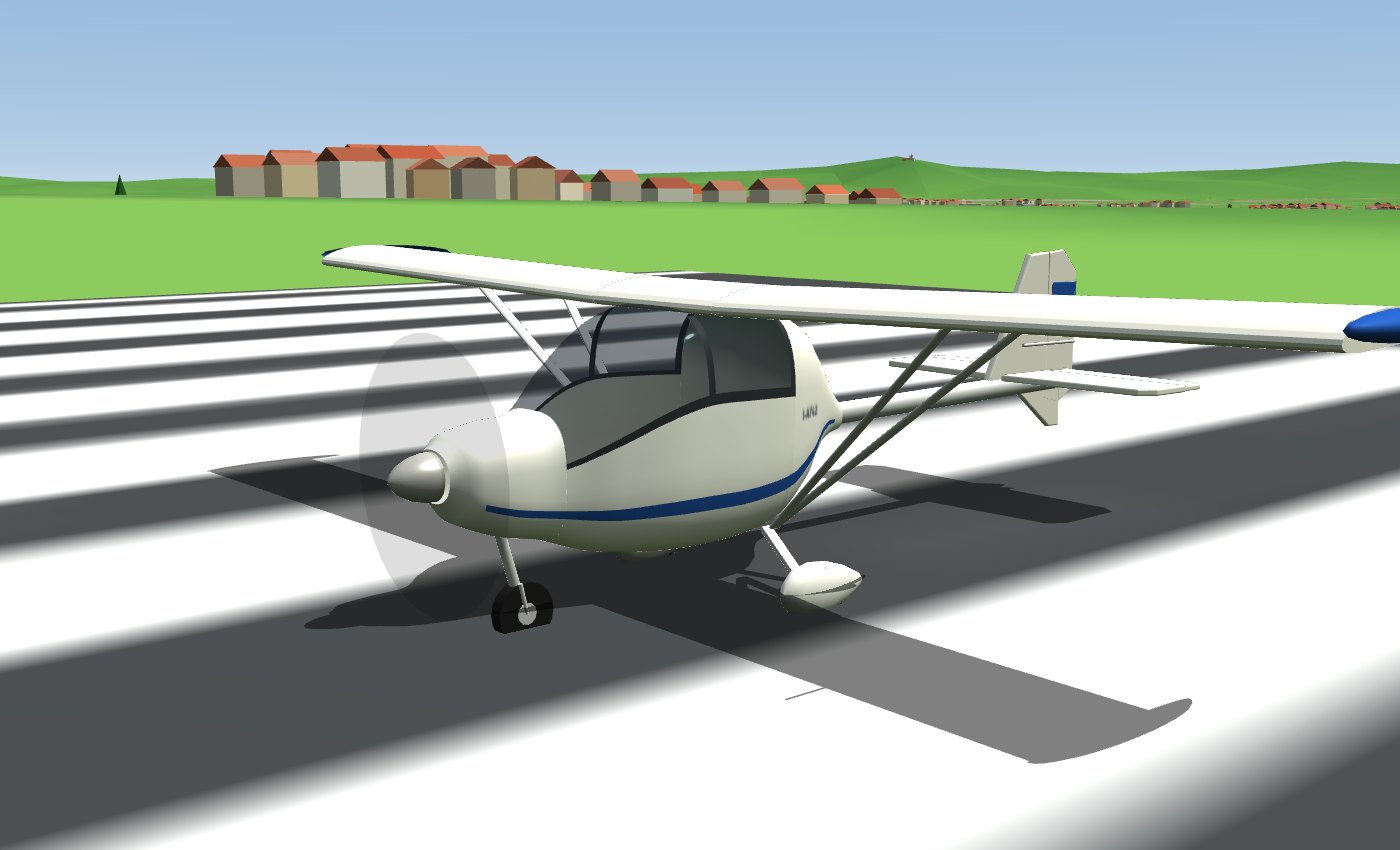
In the briefing, under Aircraft, you can choose the Ikarus C42 (Comco Ikarus, Germany) instead of the Cessna: a two-seat microlight widely used by flight schools. The game reproduces it as delivered: it only has what the real aircraft has.
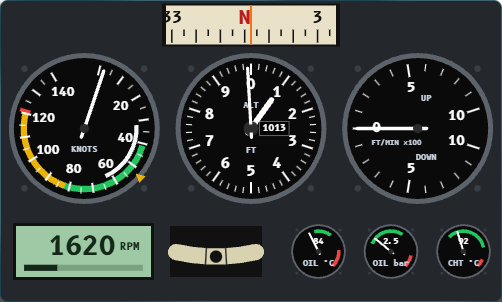
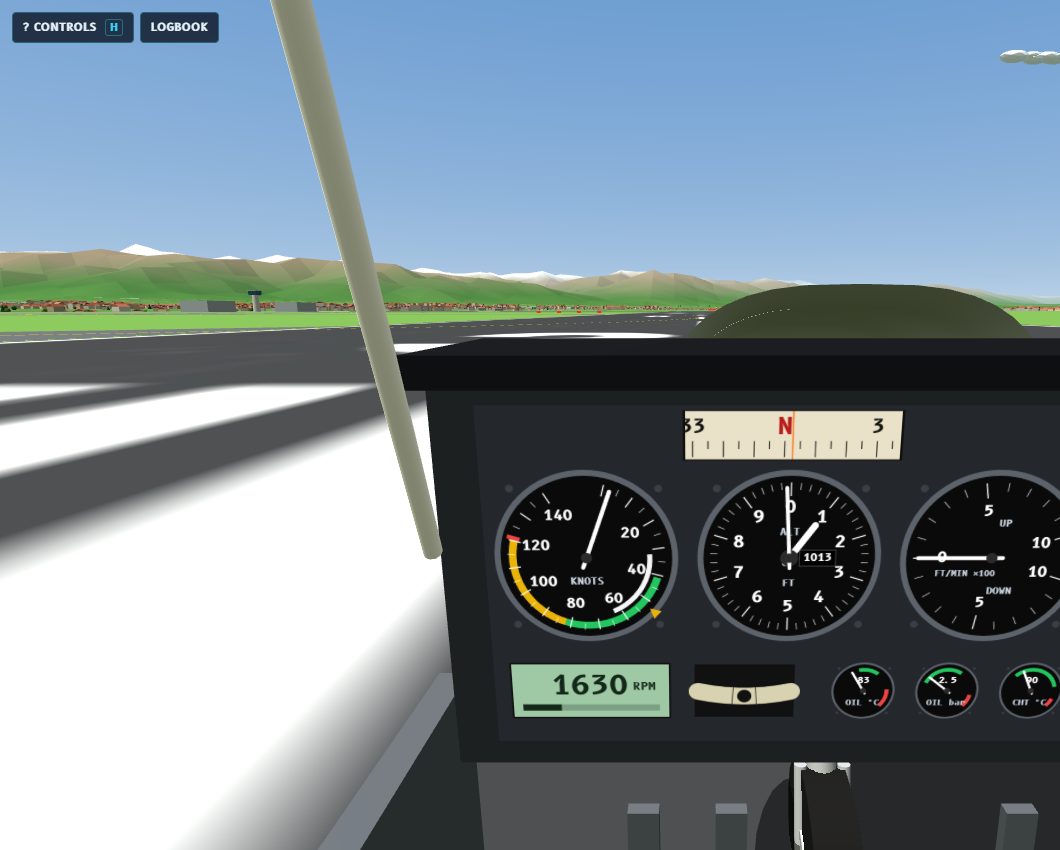
- Analogue panel, no G1000 and no attitude indicator: magnetic compass, airspeed indicator in knots with coloured arcs, altimeter, vertical speed indicator, digital tachometer, slip ball and the three Rotax engine gauges (oil temperature and pressure, cylinder head temperature).
- No autopilot and no NAV1 receiver (VOR and ILS): you fly by hand and navigate by looking outside. If you press Shift+A or V the game reminds you. The COM radio and the transponder are there: you talk to the tower just as in the Cessna.
- The map on the right is the tablet or portable GPS that microlight pilots take into the cockpit.
- Day flying only: in Italy microlights fly from sunrise to sunset, so night cannot be chosen in the briefing.
- Fuel in litres: 65-litre tank of car petrol, about 12.5 litres per hour cruising at 4500 rpm. Fuel flow depends on engine rpm (more rpm, much more fuel) and drops a little at altitude.
- In the cockpit: a single stick in the middle, between the two seats, with the brake lever; throttle between the seats; flap lever on the roof; electric trim with a switch and an indicator.
How to fly it (from the C42 owner's manual)
- Take-off: flaps 15° (F once), full throttle. The nose wheel lifts at about 26 knots: at 35 knots pull gently and the aircraft lifts off at about 38 knots. Full-throttle static rpm is about 5000.
- Climb at 60 knots with flaps 15° (about 700 ft/min). Between 150 and 200 ft retract the flaps (G).
- Cruise: 4500 rpm, about 83–88 knots. Maximum continuous is 5500 rpm: above it the tachometer turns yellow.
- Landing: on final at 55 knots with full flaps (40°, F twice). With more than 10 knots of crosswind use only 15° of flap and fly 58 knots.
- Engine failure: glide at 58 knots; the glide ratio is 11, so from 1000 ft you cover about 1.8 NM.
| Speed | Knots | Meaning |
|---|---|---|
| Vso | 32 | stall with 40° flaps |
| Vs | 36 | stall with 15° flaps |
| Vs1 | 41 | stall without flaps |
| Vr | 35 | rotation (raise the nose on take-off) |
| Vx | 48 | best angle of climb (15° flaps) |
| Approach | 55 | final with 40° flaps (minimum 52) |
| Vy | 60 | best rate of climb (15° flaps) |
| Vfe | 63 | maximum with flaps |
| VA | 82 | maximum in turbulence (end of the green arc) |
| Cruise | 83–90 | 4500 rpm |
| Vne | 121 | never exceed |
Other data: 450 kg at take-off, 9.45 m wing (12.5 m²), 80 hp Rotax 912 engine (5800 rpm maximum for 5 minutes, 5500 continuous), 1.7 m three-blade propeller. The numbers come from the C42 owner's manual and can be read and changed in dati/c42.js.
20. Worlds and the editable map
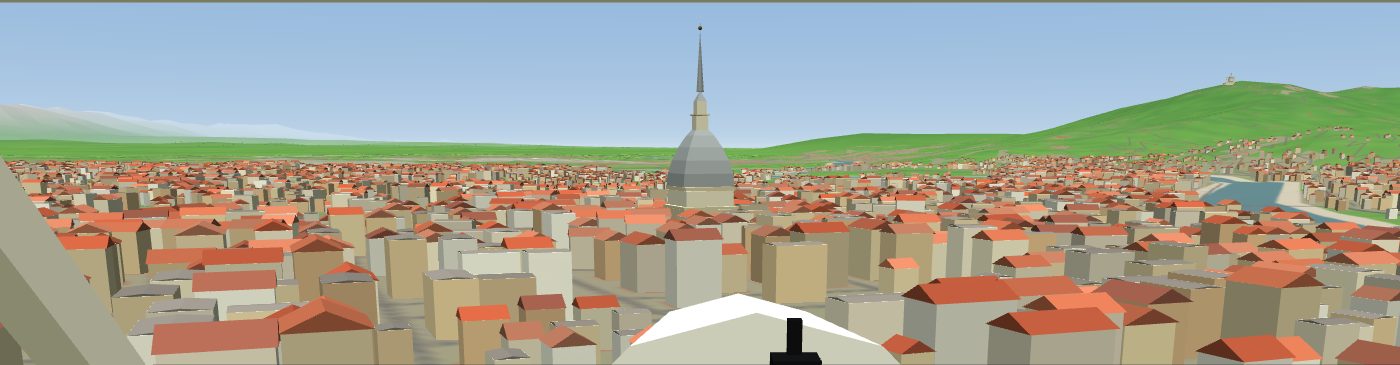
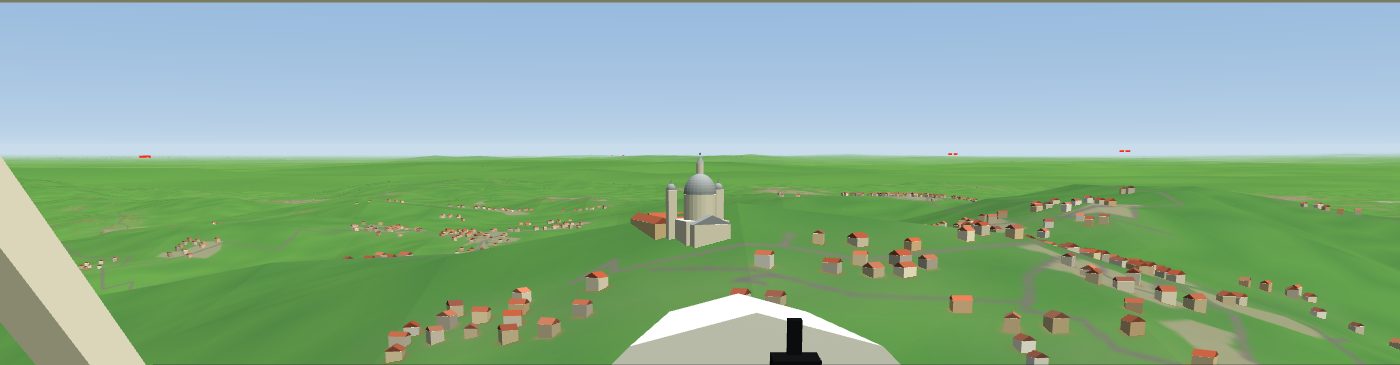
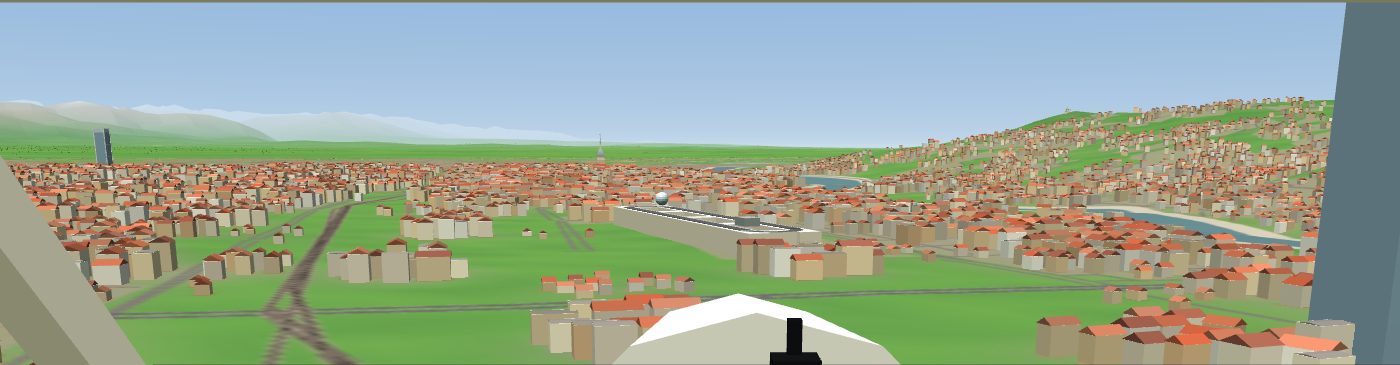
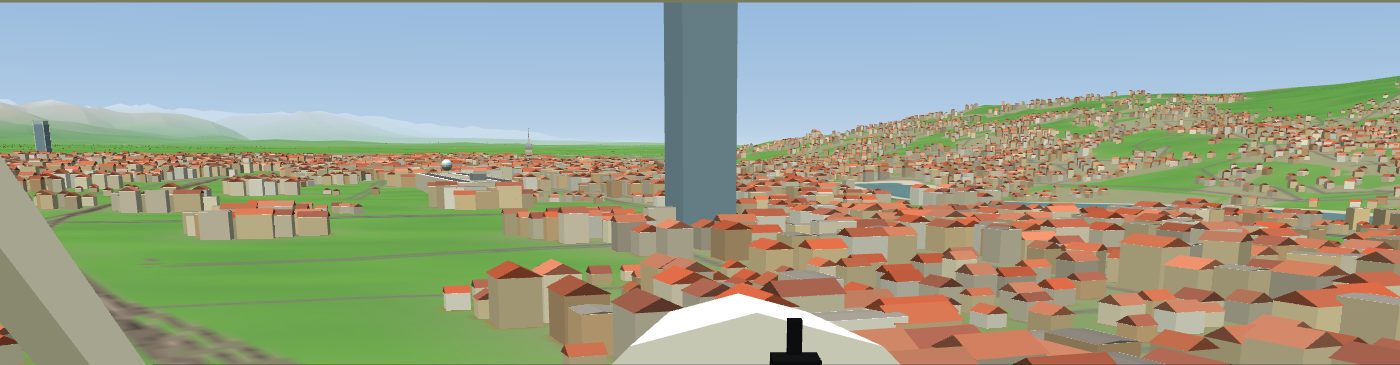
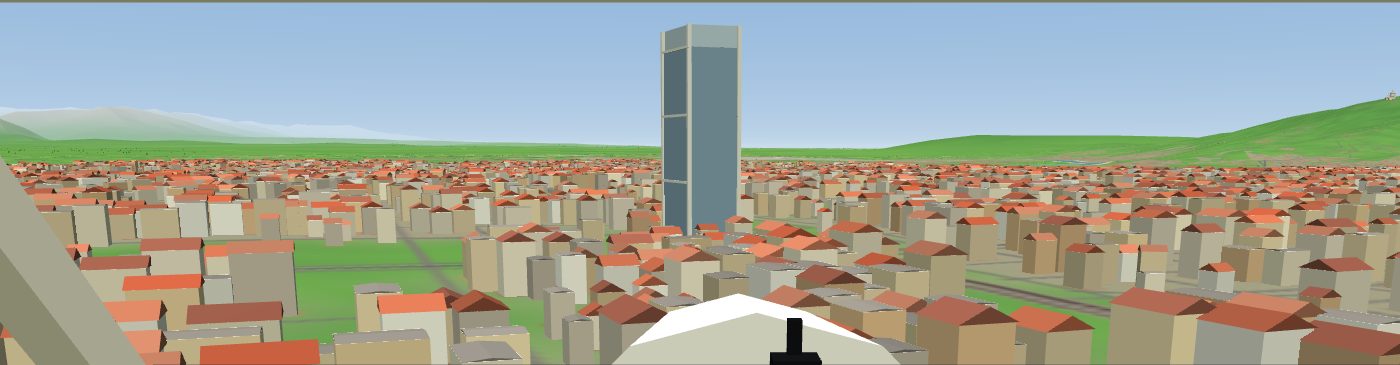
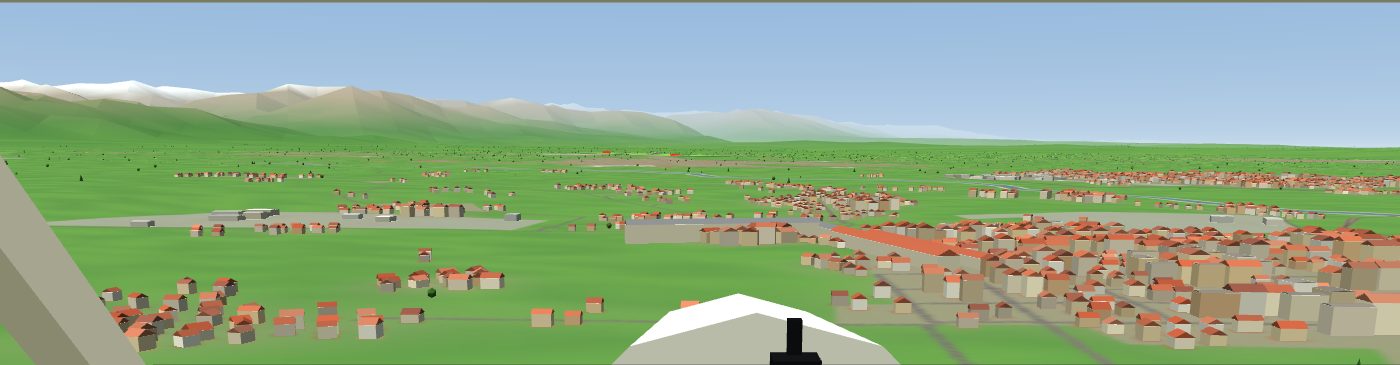
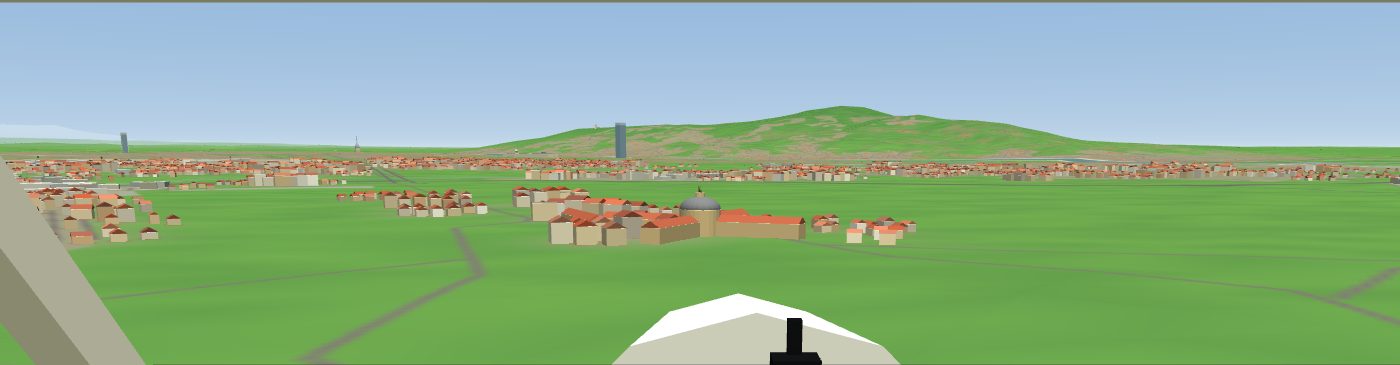
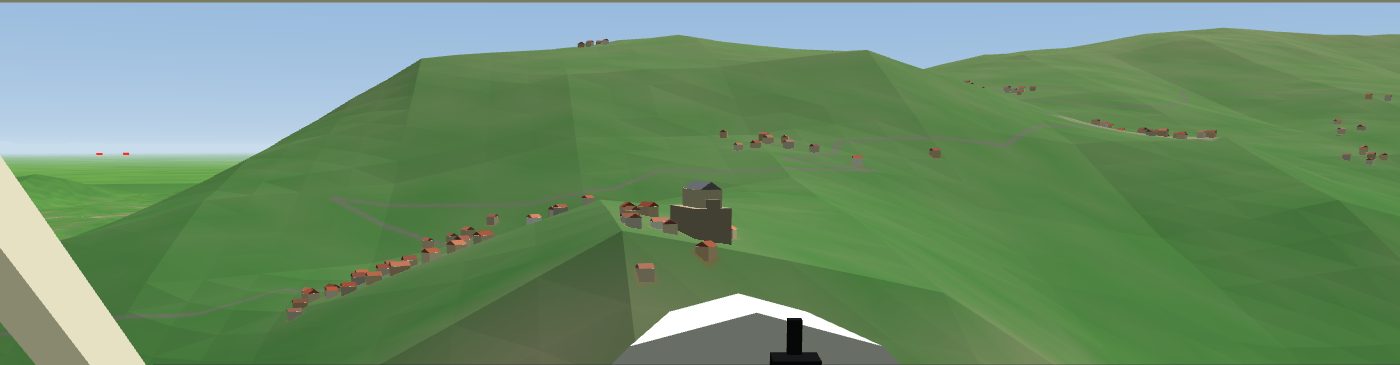
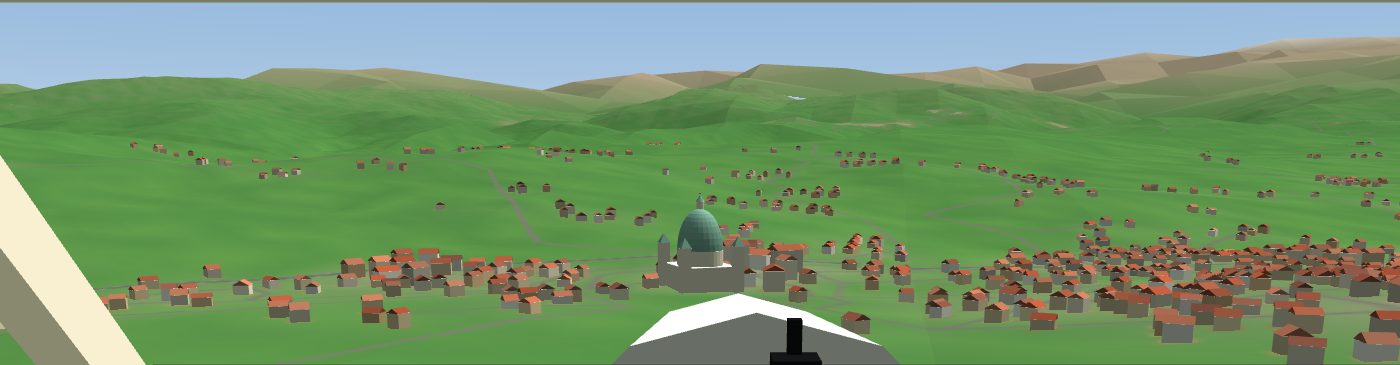
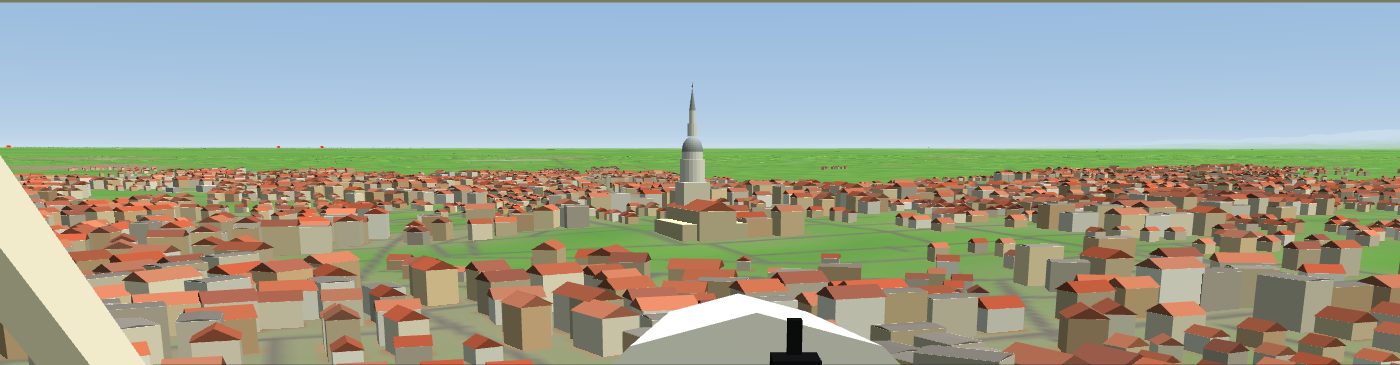
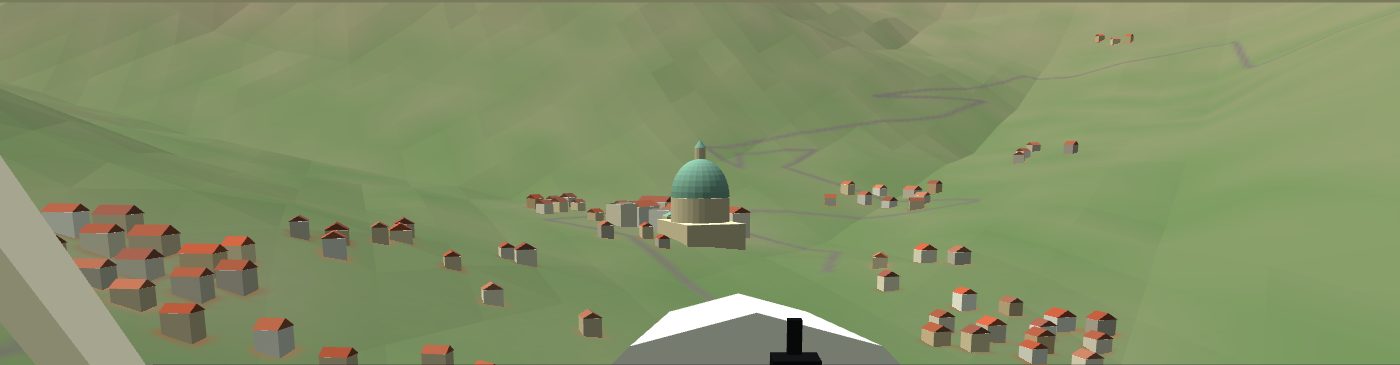
- Piedmont: real terrain (250 m grid), 32 airports with their real runways, lakes, towns, roads, railways, rivers, villages with buildings and the real VORs. Buildings change with the area: houses and farmsteads in villages, small blocks and yellow houses in historic centres, apartment blocks in the suburbs, sheds in industrial zones, stone and timber chalets with slate roofs above 700 m; they have windows and shutters, and at night some windows are lit. It covers Piedmont plus parts of Lombardy, Liguria, Aosta Valley, Switzerland and France (about 219 × 287 km). The main monuments are there too, as visual landmarks: Mole Antonelliana, Superga, the Lingotto with its rooftop test track, the two Turin skyscrapers, the Palace of Venaria, Stupinigi, the Sacra di San Michele, Vicoforte, San Gaudenzio in Novara, Oropa and the bell tower of San Maurizio Canavese (62 m, near Caselle). They are simplified models, marked on the map with a gold triangle.
- Valle Azzurra: an invented world, small and simple. Everything is in the file
dati/mappa.js, written to be edited by hand: mountains, lakes, airports and runways, towns, woods, VORs, weather and starting point. The comments in the file are in Italian.
The monuments
Seen from the cockpit, as they appear in the game.
Shortcuts to add to the page address: ?lang=en or ?lang=it choose the language; ?mappa=valle or ?mappa=piemonte choose the world; #salta skips the briefing, #finale starts on final, #vista=1 starts in the cockpit.